Your first hour with Apex Lucis
The scenario. You have just installed the app. There is nothing in it. Rather than poking at each tab in turn, this is the order that makes everything afterwards quicker — about an hour, and most of it you never do again.
1. Tell it who you are — 10 minutes
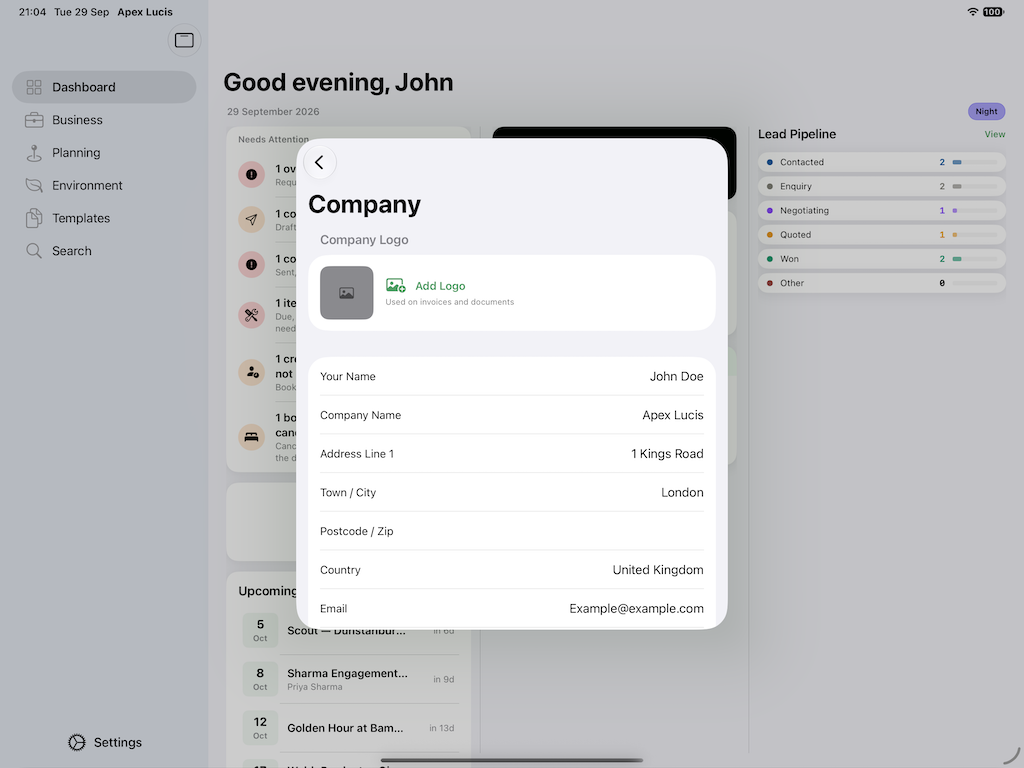
Settings → Company
Your business name, address, contact details and logo. This is what appears on every invoice, contract and model release you ever produce, so it is worth doing properly once rather than noticing a typo on the third invoice you send a client.
Settings → Regional
Currency, date format, and your distance unit. The distance unit matters more than it looks — it decides whether mileage claims are calculated in miles or kilometres.
Settings → Business
Your default turnaround time, and your mileage rate. Both are fallbacks used when something more specific is not available, and both are easier to set now than to remember later.
2. Set up what you sell — 15 minutes
Business → Packages
This is the highest-value fifteen minutes in the whole setup, because everything downstream reads from it.
Create each thing you sell as a package: the name, the price, how long the shoot is, what is included, and — the field people skip — the turnaround. Turnaround is how long you promise delivery takes, and it is what later produces the promised dates on a job rather than you inventing one on the phone.
If you have three tiers, create three. If you price everything bespoke, create one representative package anyway; you can always override the price on a quote.
3. Make the paperwork yours — 10 minutes
Templates
Five PDF templates ship with the app — invoice, contract, call sheet, crew sheet and model release — and they work immediately with the company details from step 1. If that is good enough, skip this step entirely.
If you already have your own contract wording, import it here as an RTF and it becomes the template used from then on.
Also worth a look while you are here: the Messages tab. Seven ready-written emails for the moments a job needs one — replying to an enquiry, confirming a booking, chasing an invoice, telling a client their photographs are ready. Read them and edit them into your own voice now, because you will not want to be rewriting them at the moment you need to send one.
Importing your own PDF templates is a Pro feature. Producing documents is not — without Pro you still get every document, from the built-in templates.
4. Add somewhere you actually shoot — 10 minutes
Planning → Locations
Add one real location, properly, rather than five in a hurry. Give it a name, drop the pin accurately, and fill in the notes you would want at 4am: where to park, how long the walk is, which gate is locked.
Set the type — coastal, wildlife, urban and so on. The type is not decoration: a coastal location gets tide predictions, a wildlife location gets species records, and neither appears if the type is wrong.
For a coastal location, set the safe height if the place has a cut-off. That turns a fact you might forget into a warning you get.
Now open it. You should see the light for today, the tides if it is coastal, and the forecast. That is the app working.
5. Put a real job in — 15 minutes
Business → Bookings → New
Use a job you actually have, even a past one. Attach the client, the location from step 4, and the package from step 2.
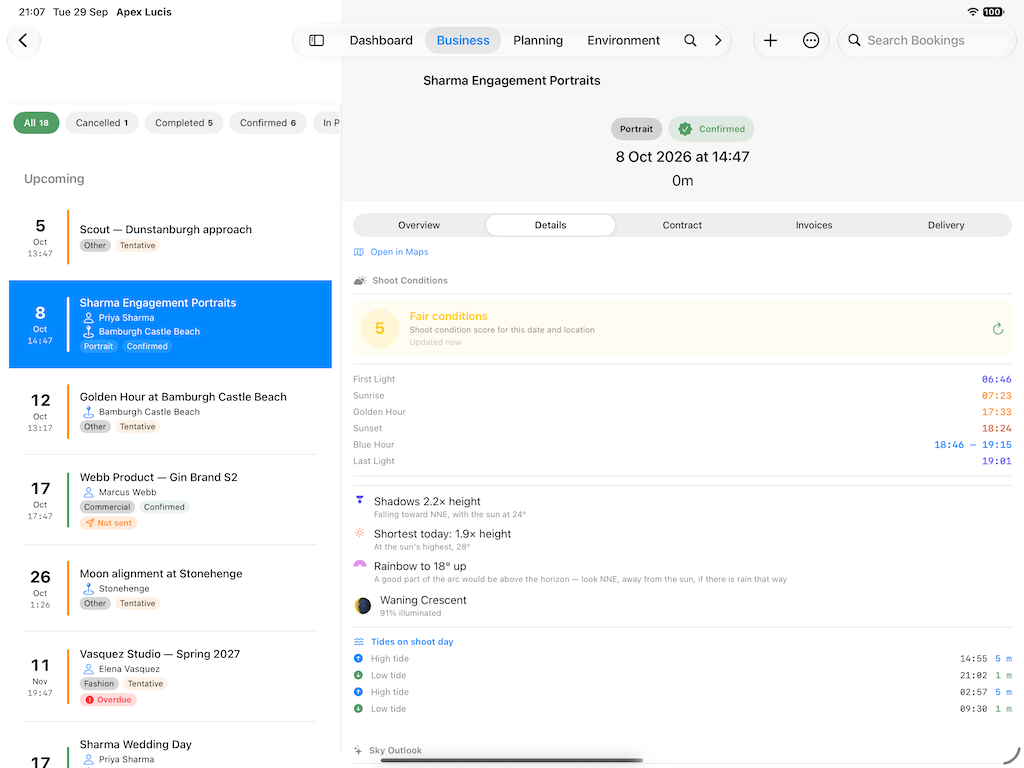
Then look at the Shoot Conditions card on it: first light, golden hour, sunset, the moon phase, and the tide rows if the location is coastal — for that date at that place. That is the thing the rest of the app exists to produce.
What you have now
A booking that knows its own conditions, an invoice that can be produced from it in two taps, and pricing that will fill itself in next time.
What to skip for now: gear, trips, crew, call sheets and permits are all worth having and none of them is worth setting up before you need them. Add a piece of gear the first time you want to record a service; build a crew roster the first time you book an assistant.
Modules used
| Module | Guide |
|---|---|
| Settings | Settings |
| Packages | Packages |
| Templates | Template Manager |
| Locations | Location Scout |
| Bookings | Bookings |