From enquiry to paid invoice
The scenario. An email arrives on a Tuesday evening: a family wants portraits in late October, outdoors, and asks whether you are free and what you charge. This is that job, followed all the way through to the money arriving.
1. Capture it before you reply
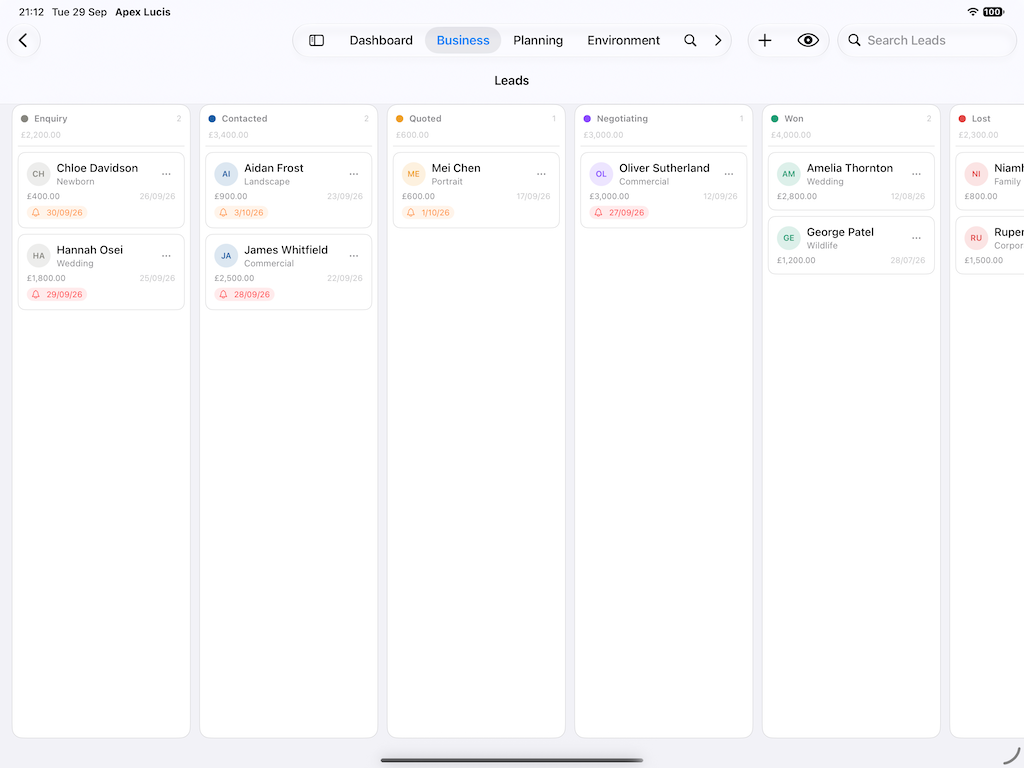
Business → Leads → New
Put the enquiry in first, not after. It takes forty seconds and it is the difference between a pipeline and an inbox.
Record the client, the date they want, what they are asking for, and where. Leave it at Enquiry.
The reason to do this before replying is that enquiries you have not replied to are the ones worth the most, and the only way to know which those are is if they exist somewhere with a state on them.
2. Reply the same evening
Open the lead → Reply
The enquiry reply is already written. Read it, change what you want, send it. Move the lead to Contacted.
Speed matters more than polish here. The family has emailed three or four photographers; the first substantive reply frames every quote that follows it.
3. Quote from your pricing, not from memory
On the lead → Quote
Build the quote from your packages. Pick the one that fits, adjust if the job genuinely differs, and the figure comes from your actual pricing rather than from how the week has gone.
Move the lead to Quoted. The date is now doing work for you: a lead sitting in Quoted for a fortnight will surface in Needs Attention, which is the follow-up almost nobody sends and which recovers a real share of jobs.
4. They say yes
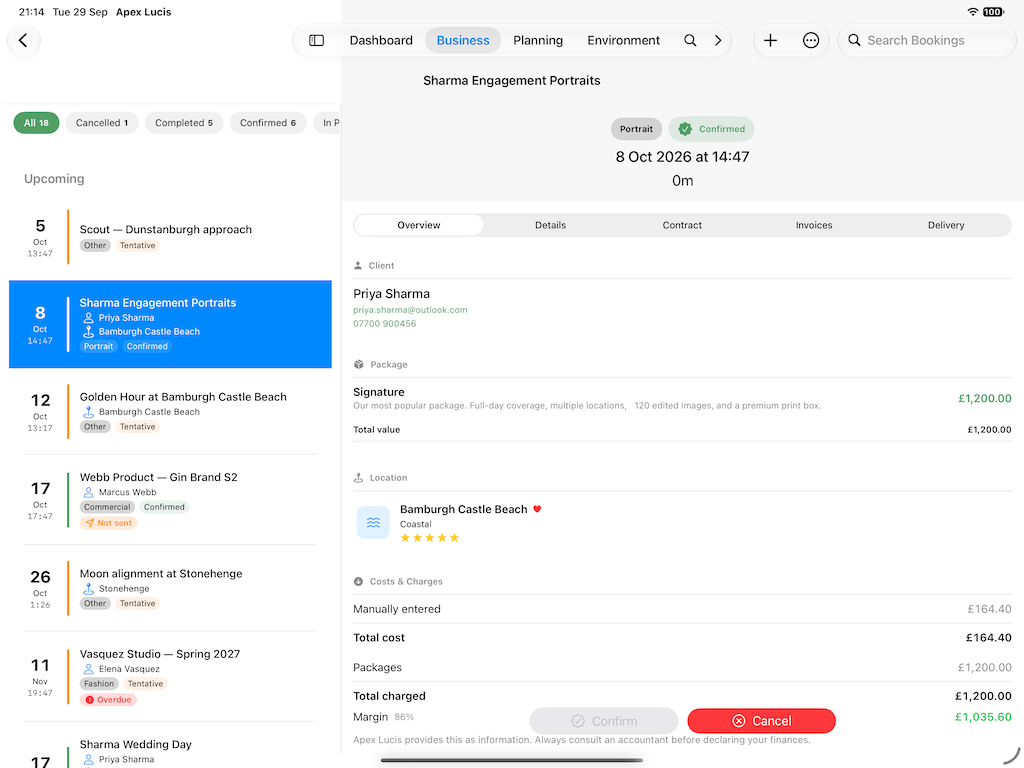
On the lead → Convert to Booking
The client, the date and the quote come across. Nothing is retyped — which matters, because retyping is where dates get transposed.
Now finish the booking:
- Location. Pick the park or set a pin. The booking immediately knows the light for that afternoon — worth checking before you confirm a time, because late October sunset is earlier than people assume and a 4pm start may be the whole session.
- Package. Attach what they bought.
- Gear kit, if you keep them.
5. Contract and deposit
On the booking → Documents → Contract
Generate it, send it, and the booking tracks whether it has come back signed. An unsigned contract close to the shoot date appears in Needs Attention rather than waiting to be remembered.
On the booking → Invoice
Create the invoice with the deposit and the balance as separate amounts, each with its own due date. Itemised from the package, so the client sees what they bought.
Send it. Status moves to Sent.
6. Shoot day
Open the booking that morning. The address, the parking notes from the location, the light times and your shot list are all on the one screen, offline.
7. Deliver what you promised
On the booking → Delivery
The package’s turnaround has already set a promised date. Move each deliverable along as you work — imported, culled, edited, delivered — and add a gallery link when it goes out.
If the job owes more than one thing, each gets its own date. A gallery in two weeks and prints in six are two separate promises, not one optimistic average.
You get a nudge at about three-quarters of the way through the window, while a slipping job can still be recovered.
8. The balance, and the bit everyone skips
Once delivered, two buttons appear on the booking: ask for a review, and get back in touch a year later. The first is the single highest-return message in the business, and it works best a few days after delivery while they are still pleased.
If the balance goes past its due date, the invoice shows as Overdue in Needs Attention, and the first chase is already written — the client’s name, the invoice number, the amount and the dates filled in. You read it, adjust it, send it.
With Pro, Automations watches for the overdue date and prepares the chase without being asked. It never sends anything on your behalf — the rule prepares the work and puts it in front of you.
Modules used
| Module | Guide |
|---|---|
| Leads | Leads |
| Packages | Packages |
| Bookings | Bookings |
| Clients | Clients |
| Invoices | Invoices |
| Templates | Template Manager |
| Automations | Automations |