Invoices
Overview
Apex Lucis generates professional invoices with your company branding, itemised packages, tax calculation, and payment details.
Invoice Types
| Type | When to Use |
|---|---|
| Balance | The remaining balance of a booking. Automatically takes into consideration other invoices when calculating the amount to be paid |
| Deposit | Initial part-payment to secure a booking |
| Full | Can be used to take the full payment for services given |
| Custom | An addition option to handle other use cases |
Invoice Statuses
| Status | Meaning |
|---|---|
| Draft | Created but not yet sent to client |
| Sent | Emailed or shared with client; awaiting payment |
| Paid | Full payment received |
| Overdue | Past due date and still unpaid |
| Refunded | A way of marking the invoice to indicate a refund was given |
| Void | Raised, then written off. Kept as a record, but no longer owed |
Overdue is worked out, not set
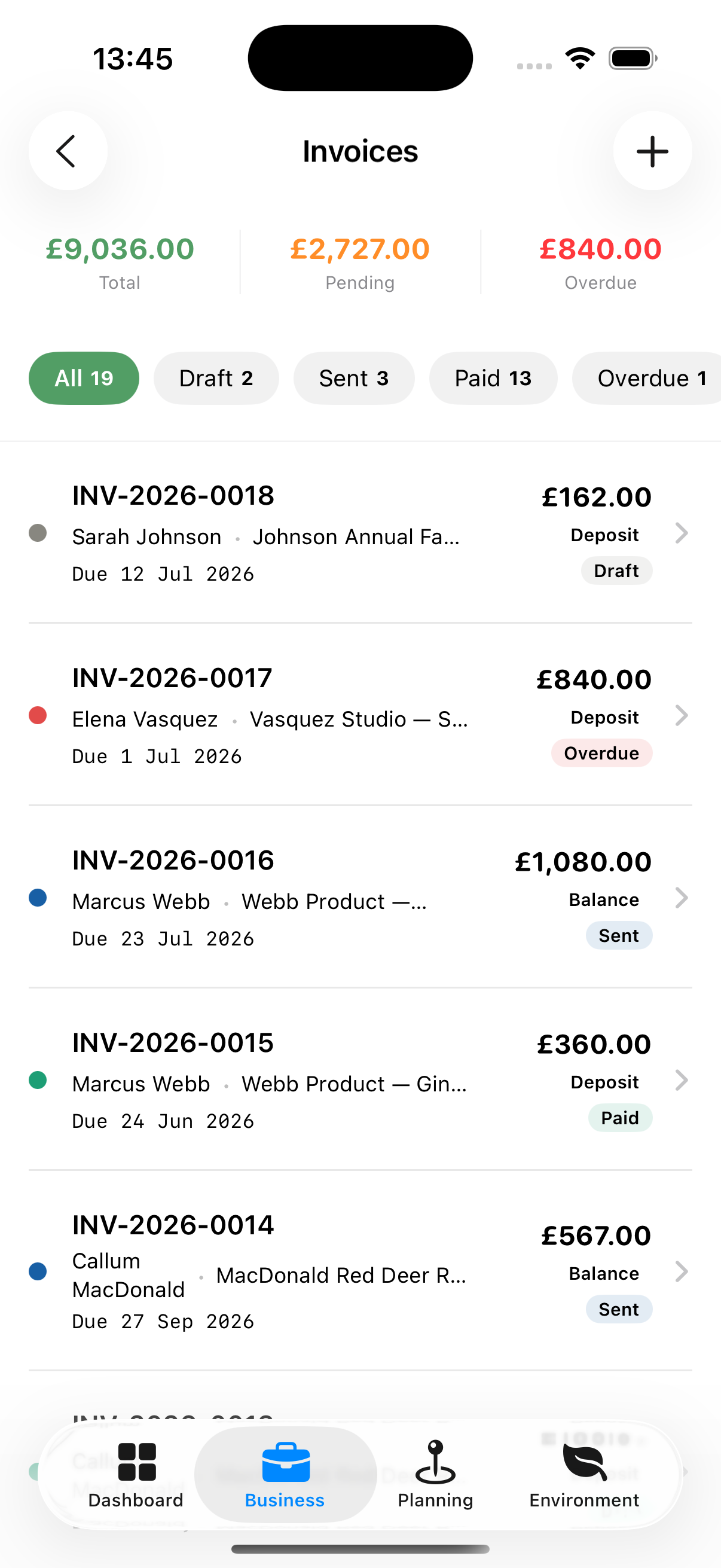
You never mark an invoice Overdue yourself. An invoice is overdue when it has been sent and its due date has passed, so the same invoice counts as both Sent and Overdue — it was sent, and it is now late. The chip counts across the top deliberately do not add up to the number of invoices.
An overdue invoice carries a red Overdue badge beside its status, and its due date turns red. The invoice detail screen also says how late it is — “4 days overdue” — which is usually what decides between a polite reminder and a phone call.
Voiding an invoice
Void is for an invoice that was raised and will never be paid: a shoot cancelled in good time, a duplicate, a figure that was wrong before it was sent.
Swipe the invoice in the list, or use the ⋯ menu on the row, and choose Void.
A voided invoice keeps its number and stays in your records, but stops counting as owed: it drops out of the overdue count, out of outstanding totals, and stops chasing you with reminders.
Why not just delete it? Invoice numbers run in sequence, and a deleted one leaves a gap that an accountant will ask about. If the invoice was ever sent, your client has a copy of a document you no longer hold. Voiding keeps the record and says it was cancelled.
A paid invoice cannot be voided — money that arrived and went back out again is a refund, not a write-off.
Accessing Invoices
Business tab → Invoices
All invoices across all bookings are listed here. Filter by status using the chips at the top (All / Draft / Sent / Paid / Overdue / Refunded / Void).
Above the list, three running totals: Total (everything sent and paid), Pending (sent and waiting), and Overdue. These match the figures on your Business dashboard.
Creating an Invoice
You can create an invoice from:
- The Booking detail screen (recommended) — tap New Invoice in the Invoice section. Creating an invoice this way automatically associates the invoice with a booking
- Tapping the ‘Add Invoice’ button in the Invoice Module. You do not need to link an invoice created this way to a booking.
When creating an invoice:
- Select the type (Full, Deposit, Balance, or Custom)
- Enter the amount (for deposit invoices, this is pre-filled with your default deposit percentage)
- Set the due date (pre-filled from your default invoice due days)
- Add any notes for the invoice footer
- Tap Save
Itemising an Invoice
An invoice can list what it is charging for line by line — coverage, prints, an album, travel — instead of showing a single figure.
Lines are added on the edit screen, not on the one you create the invoice with. Save the invoice first, then:
- Open the invoice and tap Edit Invoice (pencil icon, top right)
- Scroll down to Items
- Type a Description, a Qty and a Price, then tap +
The line appears straight away and the Amount field above becomes the total of the lines. It stops being typeable once there is a line, because the lines are now what the invoice charges.
Swipe a line to remove it. The amount falls by that line’s total.
An invoice with no lines charges whatever is in its Amount field, with nothing itemised. That is a perfectly good invoice, and it is what you get until you add a line.
Only a draft can be itemised
Lines can be added and removed while the invoice is a Draft. Once it is Sent, Paid, Overdue, Void or Refunded the Items section shows what is on the invoice and offers nothing further — your client is holding a copy, and an invoice that changes its figures afterwards leaves the two documents disagreeing.
If a sent invoice is wrong, void it and raise a new one.
Tip: On a deposit invoice, add a line saying what the deposit is for — “Deposit — 25% of wedding coverage”. The PDF then explains itself, and you are not relying on the client to work out where the figure came from.
Recharging a Booking’s Costs
Costs you carry for a shoot — studio hire, a second shooter, mileage, a permit — can be billed on to the client without typing them in again.
In Expenses, mark the cost Reimbursable by client and give it the booking it was for. Then open a draft invoice attached to that booking, and the Items section offers a button:
Add 3 recharged costs (£1,240.00)
Tap it and each cost becomes a line, described so a client can read it, priced at what you are charging rather than what it cost you.
If the invoice was priced from the booking’s packages rather than itemised by hand, a line for the shoot itself is added first, at the invoice’s own amount — so a £40 parking charge on a £600 deposit gives the client a £640 invoice listing both, not a £40 one listing the parking.
The button appears only when there is something outstanding to recharge. A cost stops being offered once it is on a line of any invoice, so the same expense cannot be billed twice.
A cost is recovered when the invoice goes out
Adding a cost to a draft changes nothing on the expense — a draft can still be reworked or deleted. Mark the invoice Sent and every cost on it flips to Recovered: it drops out of what is still to be recharged, both on the booking’s Costs & Charges card and in your Expenses totals.
Void or delete the invoice and they all go back to outstanding. Neither one recovered anything, and that money is still owed to you.
Marking a cost Recovered by hand in Expenses is untouched by any of this — use it for anything settled outside Apex Lucis.
Chasing an Unpaid Invoice
Three days after an invoice falls due, its detail screen offers a Chase section: how many days overdue it is, and a button that opens an email already written.
| From | The button says | The message |
|---|---|---|
| 3 days overdue | Send a reminder | Polite. Offers the client a way out — it may have crossed with their payment |
| 14 days overdue | Send a firmer reminder | Asks for a date, or for the problem you can help with |
The message is addressed to whoever the invoice is billed to, with the invoice number and due date filled in. Edit it in Templates → Messages if the wording is not yours.
Below the button, Last chased on… shows when you last opened one. The overdue alert keeps arriving each morning regardless — a chase that was written is not a chase that was answered.
Tip: An invoice billed to a client you have since deleted can still be chased. The address is kept on the invoice.
Invoice Calculations
| Figure | How it is worked out |
|---|---|
| Amount | The total of the invoice’s lines, or the figure you typed if it has none |
| Tax | Amount × your tax rate, from Business Settings |
| Total | Amount + tax |
| Deposit | Pre-filled from your default deposit percentage when you create a deposit invoice |
Sharing and Exporting Invoices
From the invoice detail screen:
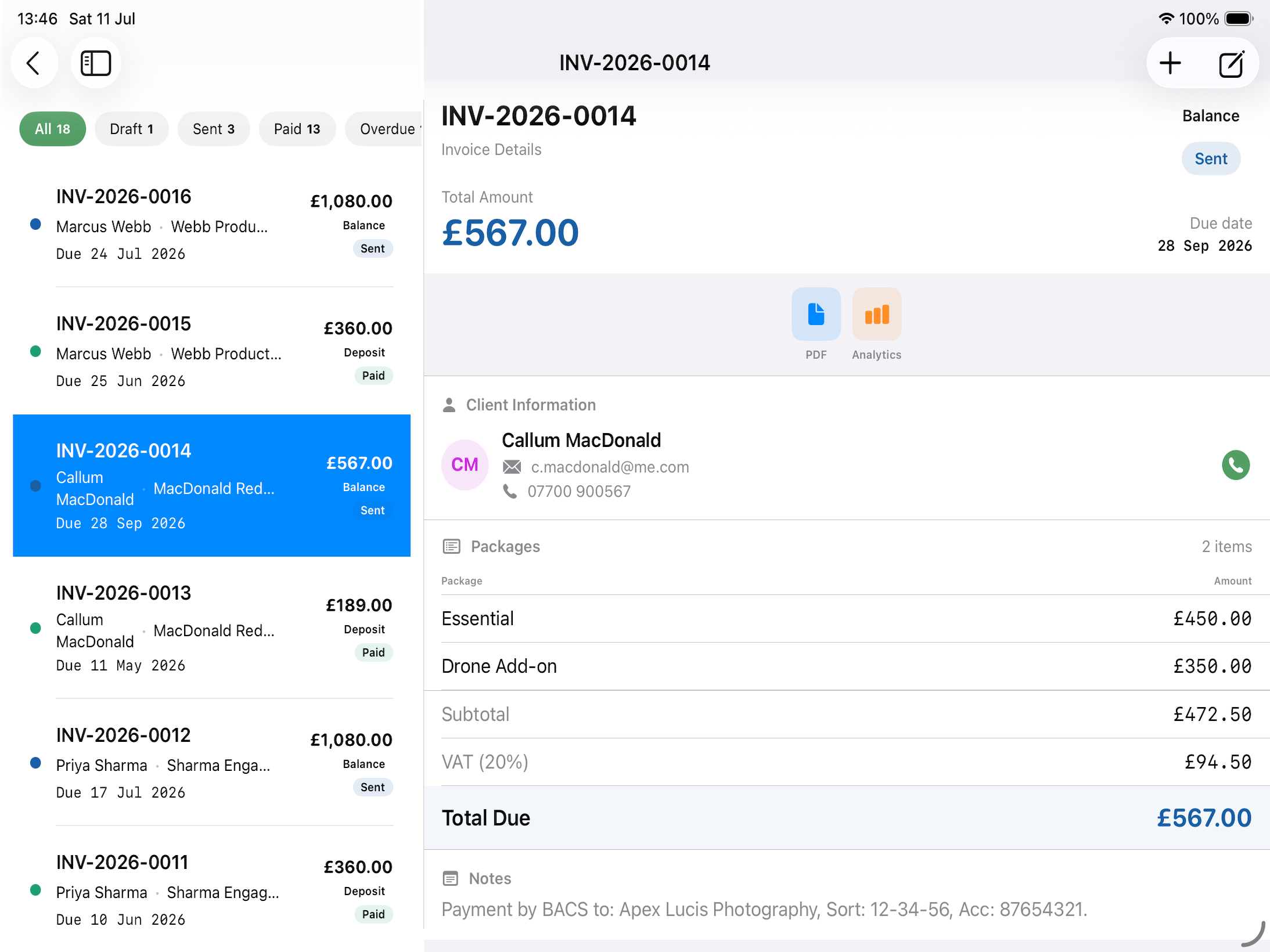
- Tap Share to export as a PDF using your company template
- The PDF includes your company logo, contact details, tax breakdown, and payment details
- An itemised invoice lists its lines, showing the quantity where there is more than one. An invoice with no lines lists the booking’s packages instead
- To send the Invoice to a client, you can use the system Share Sheet (email, AirDrop, Messages, etc.).
Getting paid from the PDF
Set a Payment Link in Settings → Business — your own Stripe, PayPal or GoCardless page — and the invoice can carry it two ways:
| Placeholder | On the page |
|---|---|
| `` | The address, as text |
| `` | A square code the client scans with a phone camera |
Both are in the invoice template that ships with Apex Lucis. A single invoice can override the link in its own Payment Link field for a one-off.
With no link set anywhere, both lines disappear from the PDF rather than leaving a gap. Apex Lucis takes no payment and never sees one — this is a link to you.
Tip: The code is sized to scan off a printed page, not only a screen. Print one and try it with your phone before the first invoice goes out.
Marking an Invoice as Paid
- Open the invoice detail screen
- Tap Mark as Paid
- Confirm
The booking’s outstanding balance updates automatically.
Deleting an Invoice
Swipe the invoice in the list, or use the ⋯ menu on the row, and choose Delete. Apex Lucis asks first and says what it will cost — deleting a paid invoice puts the booking’s outstanding balance back up by its amount, because a paid invoice is the record that the money arrived.
In most cases voiding is the better answer. Delete is for an invoice that should never have existed at all.
Invoice Analytics
From the Invoices list, tap Analytics to see:
- Total invoiced this period
- Total paid
- Total outstanding
- Average invoice value
- Payment time distribution
Disclaimer: Apex Lucis provides the Invoice module as to help you organise your payment. You should always check with a trained accountant if you are unsure.
Disclaimer: While every effort has been made to make the Invoice module work outside the UK, there is a chance it will not work in your region. You should double check any calculations and generated Invoices before sending them to clients.