Automations
Overview
Rules that do the admin for you. When a booking is confirmed, write to the client and raise the deposit. When an invoice falls overdue, write the chase. When a contract has been sitting unsigned for a week, write the nudge.
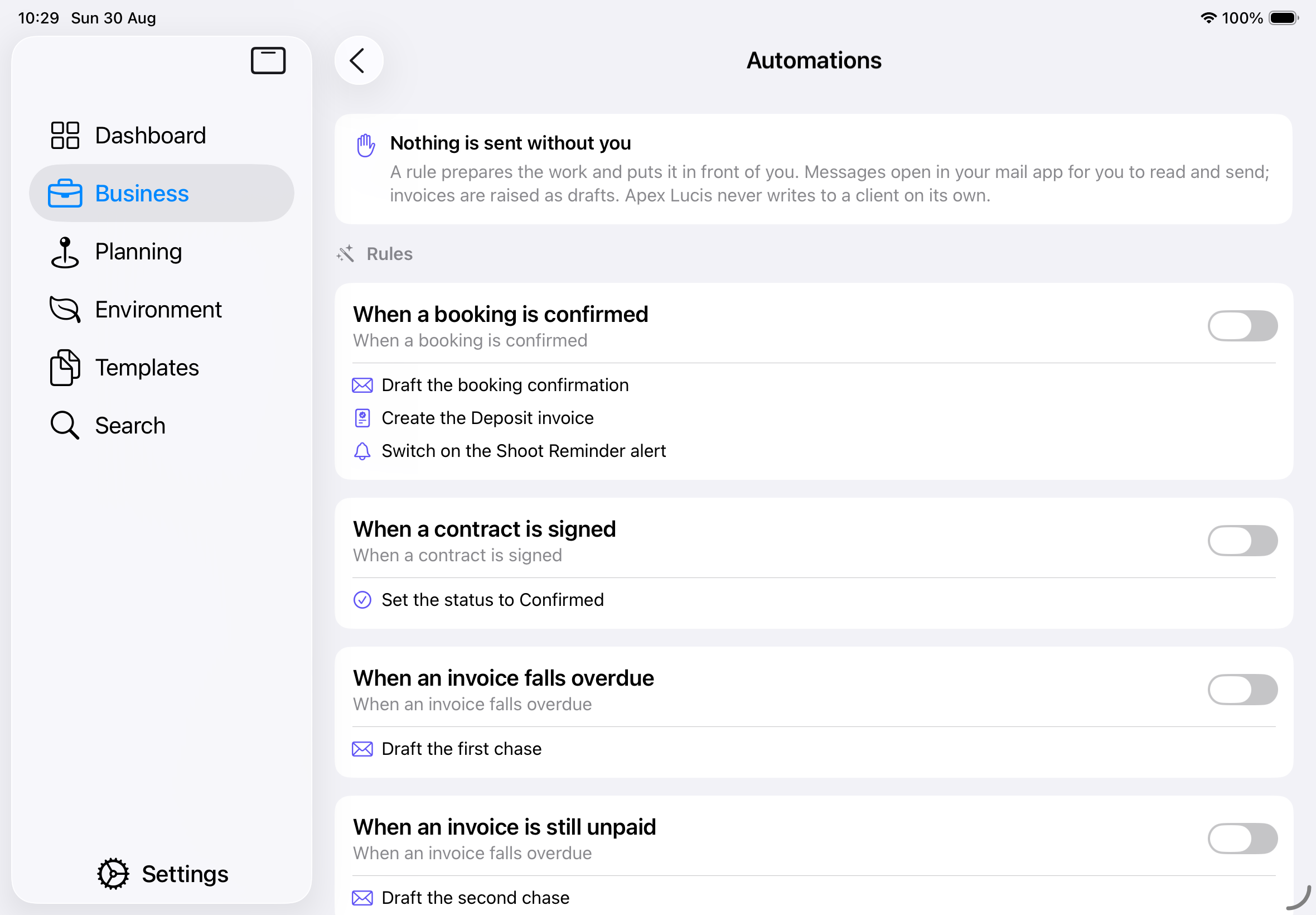
Nothing is ever sent without you. A rule prepares the work and puts it in front of you: messages open in your mail app for you to read and send, and invoices are raised as drafts. Apex Lucis never writes to a client on its own.
Pro Required: Automations need an active Apex Lucis Pro subscription. The card stays on the Business screen without one, and opening it shows the upgrade screen.
Accessing Automations
Business tab → Automations
The Rules
Seven rules come with the app. Each arrives switched off — turn on the ones you want.
| Rule | Fires when | What it prepares |
|---|---|---|
| When a booking is confirmed | You set a booking to Confirmed | The confirmation email, the deposit invoice, and the shoot reminder |
| When the deposit is paid | A deposit invoice is marked paid | Moves the booking to Confirmed |
| When a contract is signed | A contract comes back signed | Moves the booking to Confirmed |
| When a shoot is completed | You set a booking to Completed | The balance invoice |
| When a contract is still unsigned | A week after you sent it | A gentle nudge to the client |
| When an invoice falls overdue | Three days late, then again at a fortnight | The polite chase, then the firmer one |
| When something is past its promised date | An item you promised has not gone out | An honest update to the client |
| When a shoot is coming up | Five days before the shoot | A short note before the day |
| When every item is delivered | The last thing on a job is handed over | The delivery notice |
Tap a rule’s switch to turn it on or off. Turning one off leaves everything it has already done exactly where it is.
Waiting for You
Anything a rule has prepared appears at the top of the screen, and on the Dashboard under Needs Attention.
Each one names what it would do, the job it is about, and the rule that suggested it.
Review & Send opens the message in your mail app, written out, with the client already addressed. Read it over, change anything you like, and send.
Create Draft raises the invoice as a draft, exactly as if you had raised it yourself. Nothing goes to the client until you send it.
Discard says no. It stays said — a rule will not offer the same thing for the same job again.
Tip: The awkward messages are the ones worth turning on. Chasing a signature and admitting something is running late are the two most photographers put off, and having the words already written is most of what gets them sent.
A rule offers each job once
A rule prepares its work once per record and then leaves it alone. Saving a confirmed booking again does not write a second confirmation email, and opening the app three times on a Tuesday does not queue three copies of the same chase.
The wording is yours
Every message a rule prepares comes from Templates. Open the occasion, change the words to your own, and every draft from then on uses them.
Which rules run while you are away
Some rules react to something you have just done — confirming a booking, marking an invoice paid. Those fire as you do it.
The rest are about time passing: a contract going unsigned, a promised date going by, a shoot coming up. Those are worked out when you open the app, so a draft is waiting the next time you look rather than arriving in the night.
Note: A device that is never opened works nothing out. If you use Apex Lucis on both a Mac and a phone, the drafts appear on whichever you open — and once one is dealt with, it is dealt with everywhere.