Leads
Overview
A Lead represents a potential booking — someone who has expressed interest but is not yet confirmed. Leads move through a pipeline until they are either won (converted to a booking) or lost.
This is intended for potential new clients. If you already know the client, then it is easy to just create a temporary booking against them.
Lead Stages
| Stage | Meaning |
|---|---|
| Enquiry | Initial contact received, not yet responded to |
| Contacted | You have reached out to the potential client |
| Quoted | A price or package has been provided |
| Won | Converted to a confirmed booking |
| Lost | Marks the Lead as lost |
Accessing Leads
Business tab → Leads
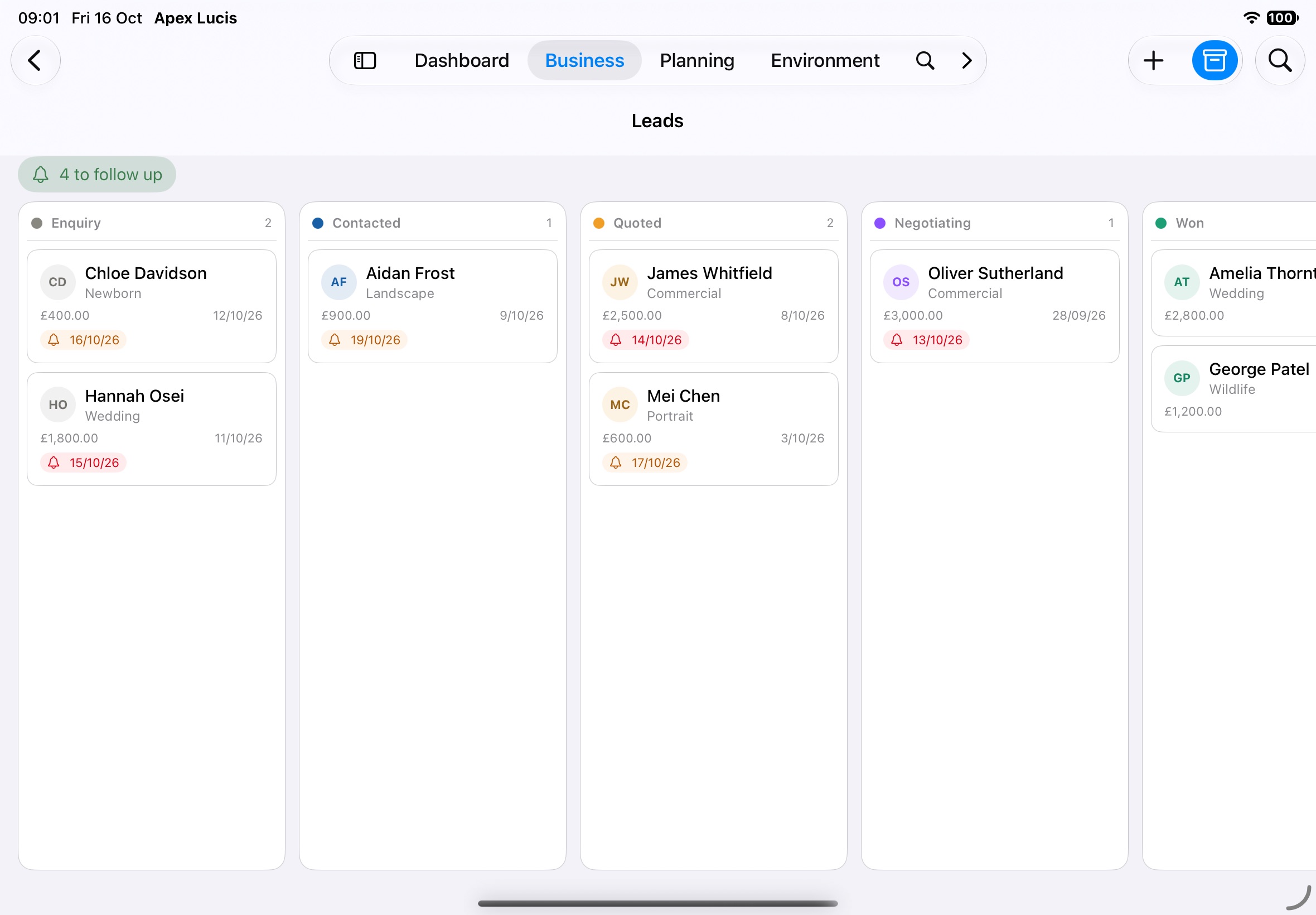
A kanban-style pipeline view shows a column for each stage, headed with the stage and how many leads are in it.
- Tap a card to open the lead’s details
- Drag a card to another column to move the lead to that stage
- Touch and hold a card (right-click on a Mac) for Edit Lead and the stage moves
- Show Closed adds the Won and Lost columns back
Above the columns, To follow up and Quotes gone quiet count the leads that need you today. Tap one to narrow the board to those leads, and Show All to see everything again. A quote has gone quiet after a week in Quoted with nothing changing.
With no leads yet, the board offers New Lead.
Creating a Lead
- Tap the + button (top right), or Business → New Lead (⌘L) on a Mac
- Enter a first or last name — either is enough — and any contact details
- Select the shoot type they’re interested in, and the shoot date if they have one
- Enter a Budget
- Switch on Follow Up and pick a date if you want reminding
- Add any notes about the enquiry
- Tap Save
A new lead can start at Enquiry, Contacted or Quoted. Won and Lost are reached by moving it, never set here.
Add leads immediately when an enquiry comes in, even with minimal details. You can fill in more later.
New Enquiries
New leads still at Enquiry appear under Needs Attention as “new enquiries”, with a reminder to respond within your Reply Within time (default: 24 hours). Each one stays there until it’s twice that old, or until you move it past Enquiry. Set the time in Settings → Business.
The Lead’s Details
Tap a card to open it. Details shows the shoot date, shoot type, source, budget and when they enquired, and Contact has the email and phone number ready to use.
Change the Stage here, tap Edit Lead to change the details, or Delete Lead. Deleting asks first, and keeps any client and booking already made from the lead.
On a Mac, Business → Move Lead To moves the lead in front.
Following Up
The follow-up date sits at the top of the details — “Follow up today”, or overdue once the day has passed — with a Follow Up menu: Today, Tomorrow, In a Week and Clear Follow-Up.
A card due a follow-up carries a bell, and the board’s To follow up button counts them.
Converting a Lead to a Booking
Move the lead to Won — drag it to the column, choose Mark as Won and Create Booking… from its touch-and-hold menu, or change its Stage in the details.
Apex Lucis asks first, naming the client and the booking it will create:
- Create Booking makes the client and the booking, linked together
- Create Booking and Open It does the same and takes you to the booking
Both are kept if the lead is moved back later.