Dashboard
Overview
The Dashboard is the app’s home screen. It gives you an at-a-glance view of the light, your next shoot, what needs doing and how the month is going — all without navigating away from the home screen.
Dashboard Cards (iPhone / Narrow)
Tap Customise to reorder or hide the sections below. A card that opens somewhere says so with View › in its header, or See All › where it previews a list.
The Light
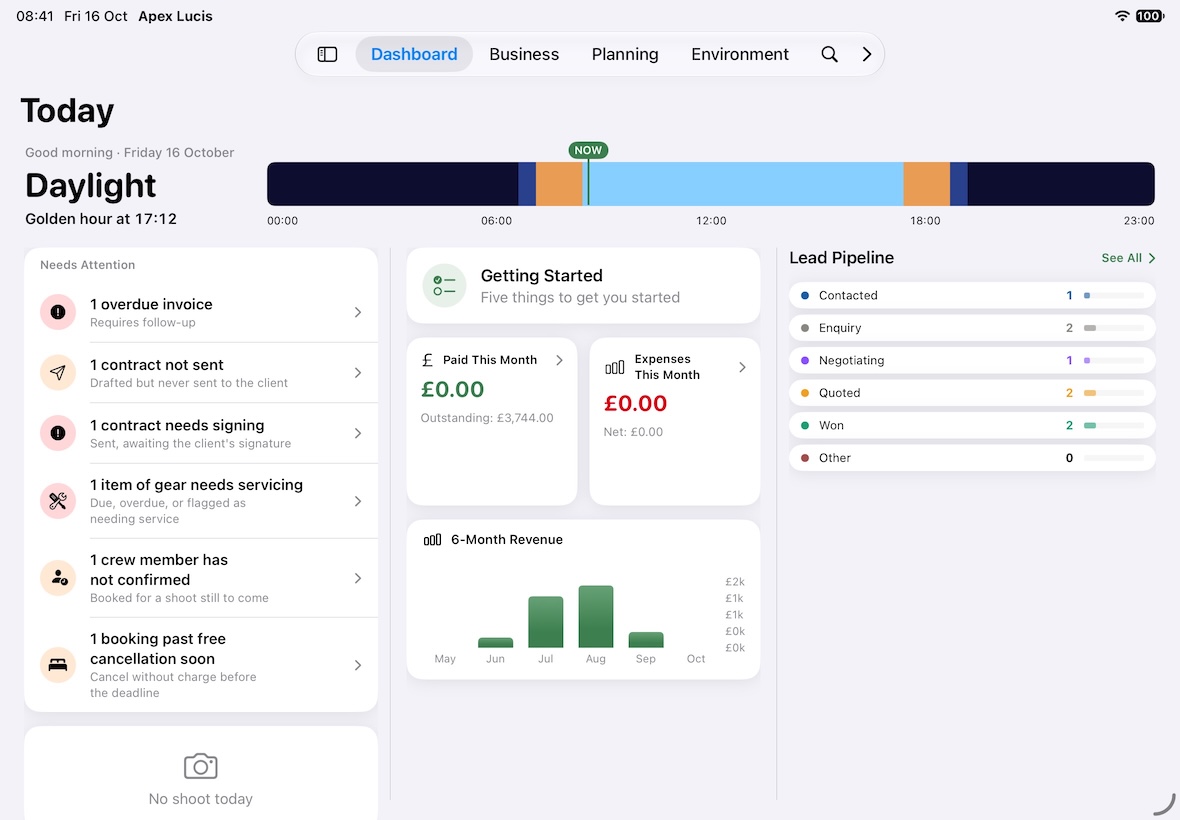
At the top, the light right now in large type — golden hour, blue hour or daylight — and what comes next: “Blue hour in 38 min”, “Sunset at 18:22”, or “Sunrise tomorrow at 07:21” once the evening is over. The day’s timeline runs underneath.
Today’s Shoot
On a shoot day, the booking with its time and place. Tap it to open the booking.
Light Window
Today’s golden hour and blue hour times, and the moon, for your current location. Tap it to open Light & Sky.
Next Shoot & Revenue
Side by side. Next Shoot shows the name, date, client and status of your next upcoming shoot — tap it to open that booking. Revenue This Month summarises paid invoices and the outstanding balance, and opens Invoices.
Upcoming Shoots, Expenses This Month, Revenue Chart and Lead Pipeline
Your diary for the weeks ahead, this month’s spending, revenue against expenses month by month, and how many leads are at each stage.
Needs Attention
Everything waiting on you, in one list — overdue invoices, new enquiries that need a reply, contracts to send or chase, deliveries past the date the client was given, permits about to expire, and gear due a service. Each row says how many and taps straight through to the list holding them, rather than to a menu.
At the bottom sit the two rows that are opportunities rather than problems: shoots worth asking for a review, and clients photographed nearly a year ago. They are last so nothing urgent is pushed down the card, and each is offered for a while and then steps aside. Both are acted on from the booking’s Delivery tab — see Bookings.
The card only appears when there is something on it.
The Business and Planning screens each carry the same card holding only their own work — Planning lists permits expiring and gear due a service, without overdue invoices padding it out. The Dashboard is the one place that shows everything at once.
Getting Started
Until you dismiss it, a Getting Started card offers a short checklist of the first things worth setting up.
Dashboard (Wide Layout)
On iPad and Mac, the dashboard uses a multi-column layout with the same information side by side: the next shoot and today’s light, revenue and expenses for the month, the revenue chart, Upcoming Shoots and the Lead Pipeline, each with See All › to its full list.
Contracts With No Booking
Occasionally Needs Attention reports a contract that is not linked to any booking — usually one left behind when its booking was deleted.
These are worth clearing, because a contract is only ever opened from its booking, so one belonging to no booking appears nowhere else in the app. Tapping the row opens Unlinked Contracts, which lists each one with its template, status, client and date, and offers two ways out:
- Attach to Booking — pick the shoot it belongs to. Only bookings without a contract are offered, since a booking holds one contract at a time.
- Delete — removes it for good, and says so first. If it holds a PDF, that is the only copy.
Greeting
The dashboard shows a time-appropriate greeting (Good morning / Good afternoon / Good evening) personalised with your name if set in Company Settings.