Contacts
Overview
Contacts is your directory of people you work with — crew members, freelancers, models, suppliers, and vendors. Unlike Clients (who hire you), Contacts are people you hire or collaborate with.
iPhone iPad/Mac
Contact Types
| Type | Example |
|---|---|
| Client | Person who books you for a shoot |
| Crew | Assistant, second shooter |
| Talent | Model, actor |
| Vendor | Equipment hire company |
| Supplier | Print lab, studio supplier |
Accessing Contacts
Business tab → Contacts
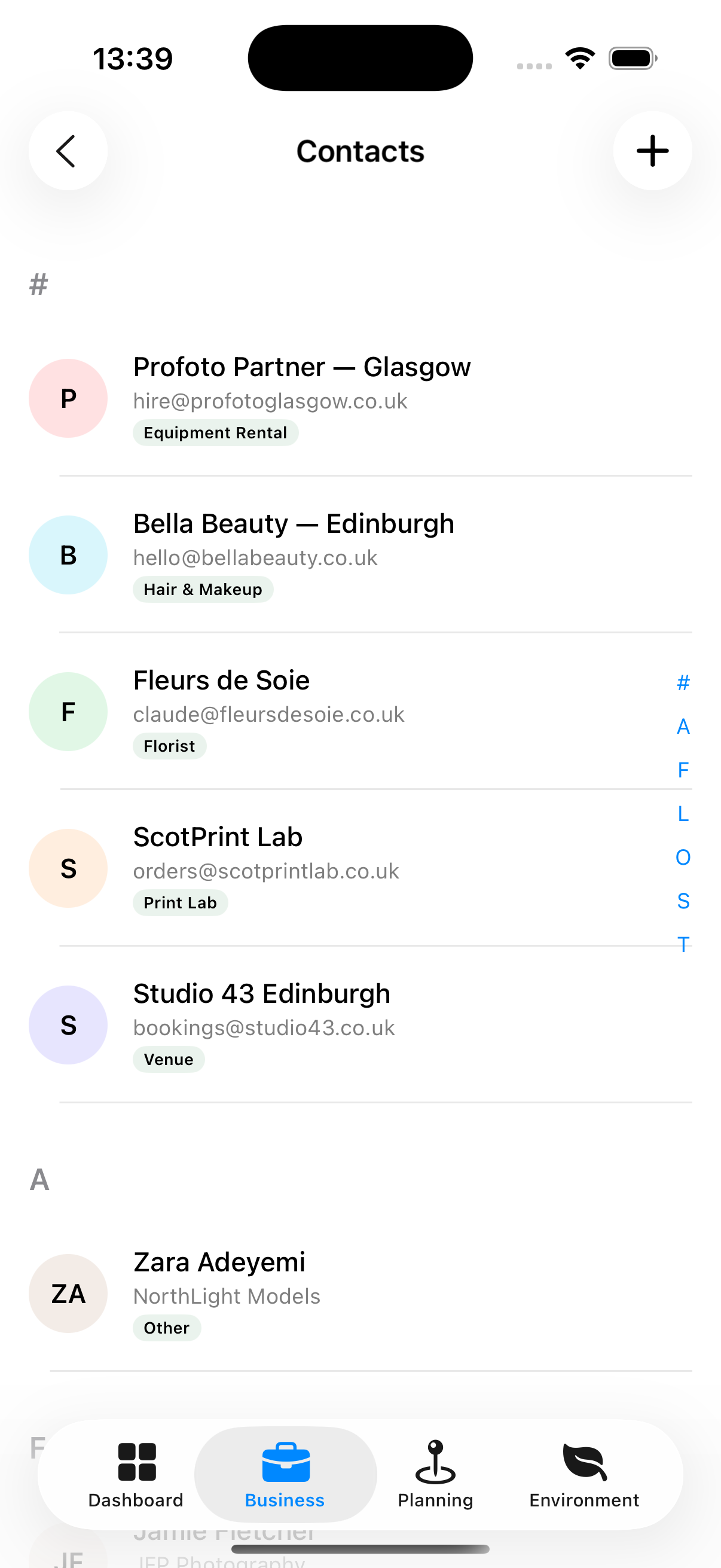
Contacts are grouped by the initial of their surname, with an alphabet index down the right edge of the list — tap a letter to jump to it. The search bar at the top filters by name, company, email or phone number.
Creating a Contact
- Tap +
- Enter their first and last name (required)
- Then complete any of the optional fields
- Select their type (Crew, Talent, Vendor, etc.)
- Add any profile notes
- Tap Save
Contact Detail Screen
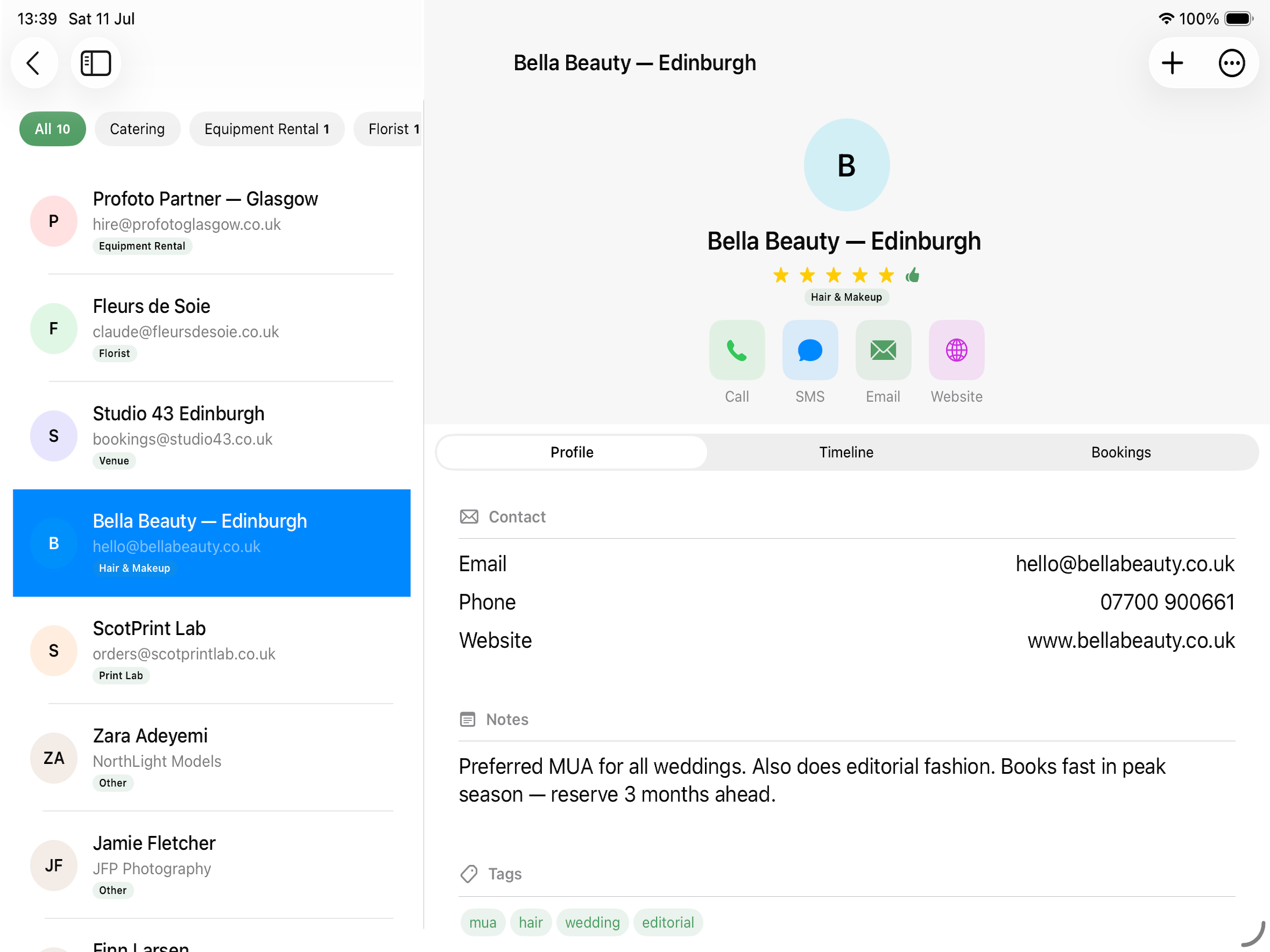
Shows four sections:
- Header — Name, photo, type badge, tap-to-call / tap-to-email buttons
- Profile — Notes, speciality, rates
- Timeline — Interaction log
- Booking History — Every booking they’ve been part of
Sending Email or SMS
From any contact’s detail screen:
- Tap their email address to open a pre-addressed email in Mail
- Tap their phone number to open a pre-filled SMS in Messages
Note: Email and SMS use Apple’s native apps. You cannot send messages from within Apex Lucis directly. Any communication sent this way will not be recorded in the timeline, as this data is not shared by the native applications.