Call Sheets
Overview
A call sheet is a day-of-shoot schedule. It lists who needs to be where, when, and what they’ll be doing — broken into time slots, each with a crew list, location, and attached shot list.
Pro Required: Call sheets are part of Crew & Call Sheets, which needs an active Apex Lucis Pro subscription — the same one that covers Crew and model releases. Without it, the Call Sheet card still appears on the Planning screen, and opening it — or the Mac’s Planning → New Call Sheet — shows the upgrade screen.
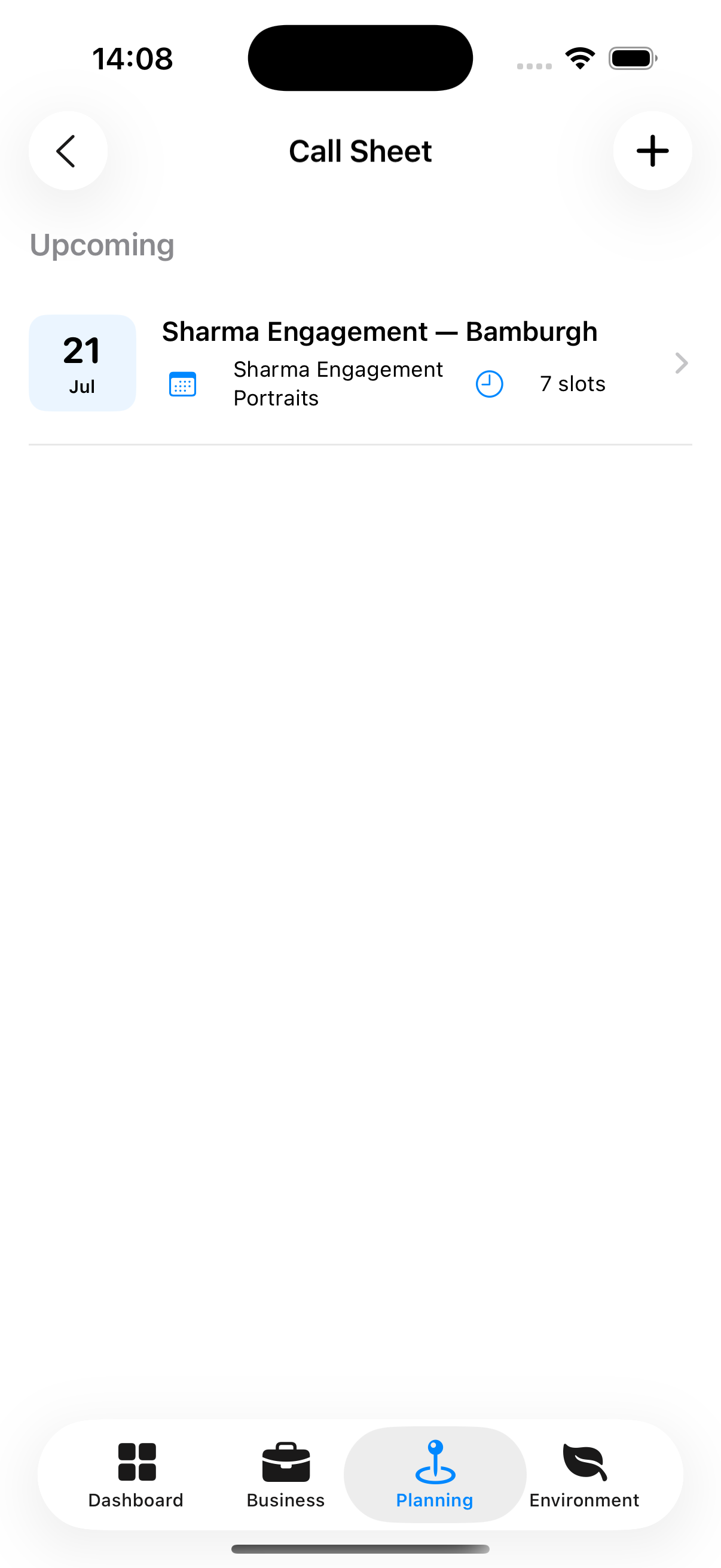
Accessing Call Sheets
Planning tab → Call Sheet
Creating a Call Sheet
- Planning tab → Call Sheet → Add Call Sheet
- Enter a Title (required) and the Shoot date
- Add the Meeting point and an Emergency contact for the day
- Under Link to Booking, choose the booking this day belongs to, or leave it on None — personal shoot
- Tap Save
A call sheet can also be attached to a booking later: edit the booking and pick it from the Call Sheet list. Either way it then shows on the booking’s detail screen.
On a Mac, Planning → New Call Sheet (⌃C) opens the same form in its own window.
Adding Time Slots
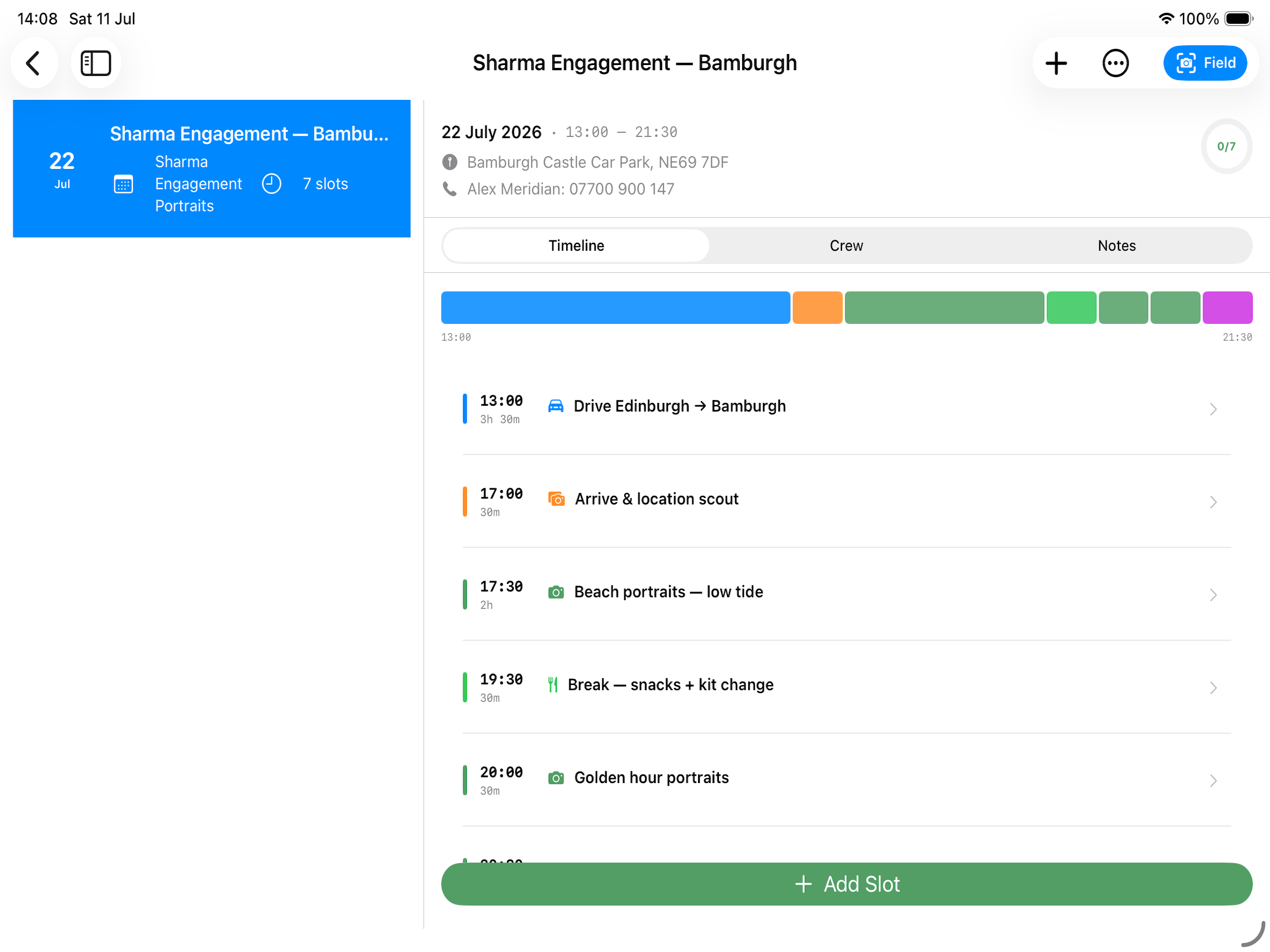
A call sheet is divided into time slots (e.g., 06:00 Crew arrives, 06:30 Golden hour shoot begins):
- From the call sheet detail, tap + Add Slot
- Set:
- Type e.g. Shoot, Setup, break, etc
- Name Default to the Slot Type
- Start time
- End time
- Location — Which location or area
- Shot List — Attach the relevant shot list for this slot
- Gear Kit — Attach a defined Kit for the slot.
- Tap Save
Assigning Crew to Slots
Each slot can have different crew members:
- Tap a slot to open it
- Tap Add Crew Member
- Select from your Contacts list, or add a one-off external person (name only)
- Assign their role for this slot (Director, ADC, Producer, Talent, etc.)
- Tap Done
Viewing the Timeline
The Timeline Tab in the call sheet detail shows all slots as a visual timeline strip, making it easy to see the full day at a glance. The Active Slot is highlighted when you’re viewing the call sheet on the shoot day itself.
Tracking Attendance
In each slot, tap an attendee’s card to mark them as present or absent. This creates a simple attendance record.
Sharing a Call Sheet
From the ⋯ menu:
Preview Call Sheet produces the PDF, using your own template if you have imported one.
Share as Web Page produces a single self-contained page instead — the same day, laid out to be read on a phone. It opens in a preview first, then Share sends it however you would send a photograph: Messages, Mail, AirDrop, or saved to Files.
The page is one file with nothing to log into and nothing to install, so a second shooter or a hair and make-up artist can open it on whatever they carry. It is read-only — changes you make afterwards do not reach a copy already sent, so send a fresh one if the day moves.
Pro Required: Sharing as a web page is part of Client-Ready Web Documents, which needs an active Apex Lucis Pro subscription. The PDF is free.
Field Mode
Field Mode provides a cut down UI to make it easy to see what you should be doing at that time, and to record when a slot has been completed.
It also raises a Live Activity — the current and next slot on your Lock Screen, and in the Dynamic Island on iPhone, without unlocking the device. Switching back to Plan ends it. See Live Activities.
Tip: Turn Field Mode on as you arrive rather than when the first slot starts. The Lock Screen then carries the running order for the whole day.