Crew
Overview
Crew manages the roster of people assigned to a specific shoot — their roles, fees, call times, and model releases.
Can be used in association with a Call Sheet, or used standalone.
Pro Required: Crew is part of Crew & Call Sheets, which needs an active Apex Lucis Pro subscription — the same one that covers Call Sheets and model releases. Without it, the Crew & Models card still appears on the Planning screen, and opening it — or the Mac’s Planning → New Crew Roster — shows the upgrade screen.
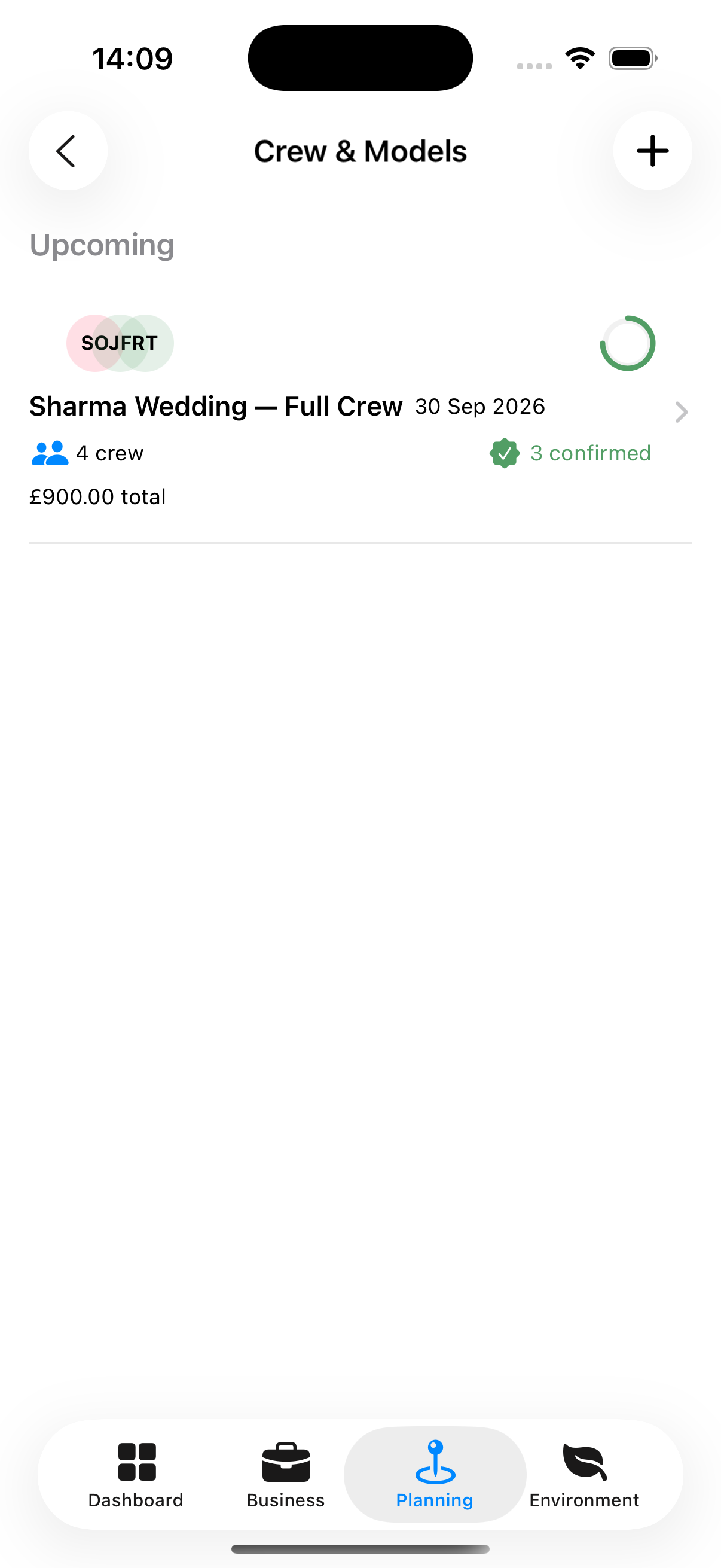
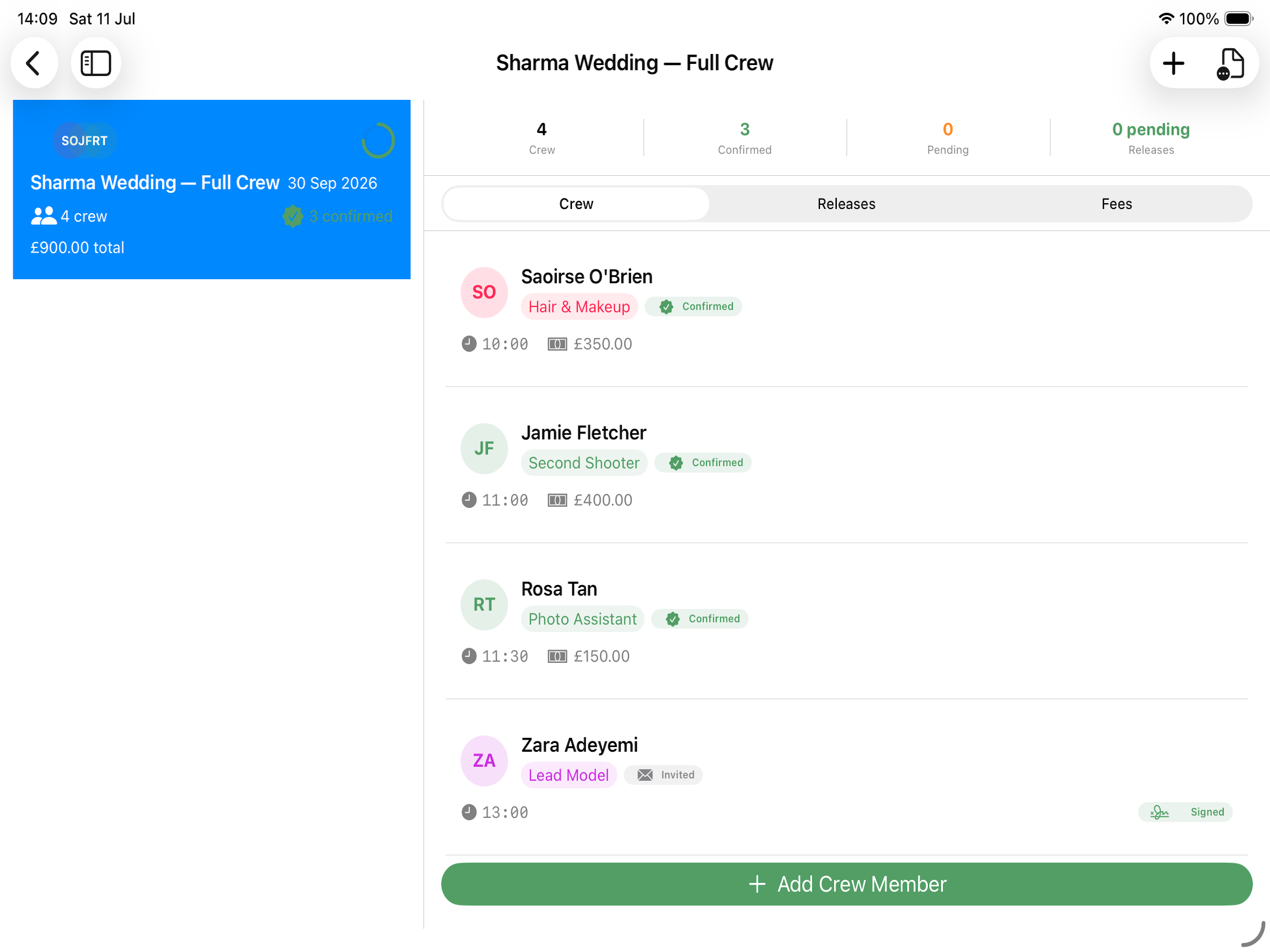
Accessing Crew
Planning tab → Crew & Models, or from a booking detail screen → Crew Section
Creating a Roster
A roster is the group of people on one shoot. Make the roster first, then put people in it.
- Planning tab → Crew & Models → Add Crew Roster
- Enter a Roster Title (required) and the Shoot date
- Under Link to Booking, choose the booking it is for, or leave it on None — standalone roster
- Tap Save
On a Mac, Planning → New Crew Roster (⌃O) opens the same form in its own window.
Adding People to a Roster
- Open the roster and tap Add Crew Member
- Select a contact from your directory, or enter a person manually
- Set:
- Role — Director, ADC, Producer, Talent, Stylist, Other
- Payment type — Daily rate / Hourly rate / Flat fee / Equity
- Rate — The agreed payment amount
- Tap Save
Roster Detail Screen (Three Tabs)
Opening a roster shows Crew, Releases and Fees:
Crew Tab
- Everyone on the roster, with their contact details and role on this shoot
- Payment type and rate
- Whether they have confirmed — tap a crew member to update it
Releases Tab
- Whether a model release form has been obtained
- Release document status (not obtained / sent / signed)
- Tap to update status or generate a release form PDF
Signing a Model Release
A release can be signed there and then, on the device, which is usually how it happens — talent is standing in front of you and the shoot is about to start.
- Open the roster’s Releases tab and tap the person
- Enter the Signer’s full legal name
- Tap Sign and sign in the panel
Sign with a finger, a stylus or an Apple Pencil — anything that draws on the screen works. Re-sign replaces a signature that did not come out well.
The signature is stored with the release and printed on the PDF from then on.
Where the model is under 18, switch on Guardian signature required and the panel asks for the guardian’s name and their signature instead. The guardian’s name has to be entered before you can sign.
Where a release was signed on paper, switch on Paper form signed (not digital) to record that instead.
Warning: A model release is a legal document. Apex Lucis records the signature and the name; whether the wording covers the use you intend is between you and your own advice.
Fees Tab
- Shows the breakdown of fees for each Crew Member for the Shoot.