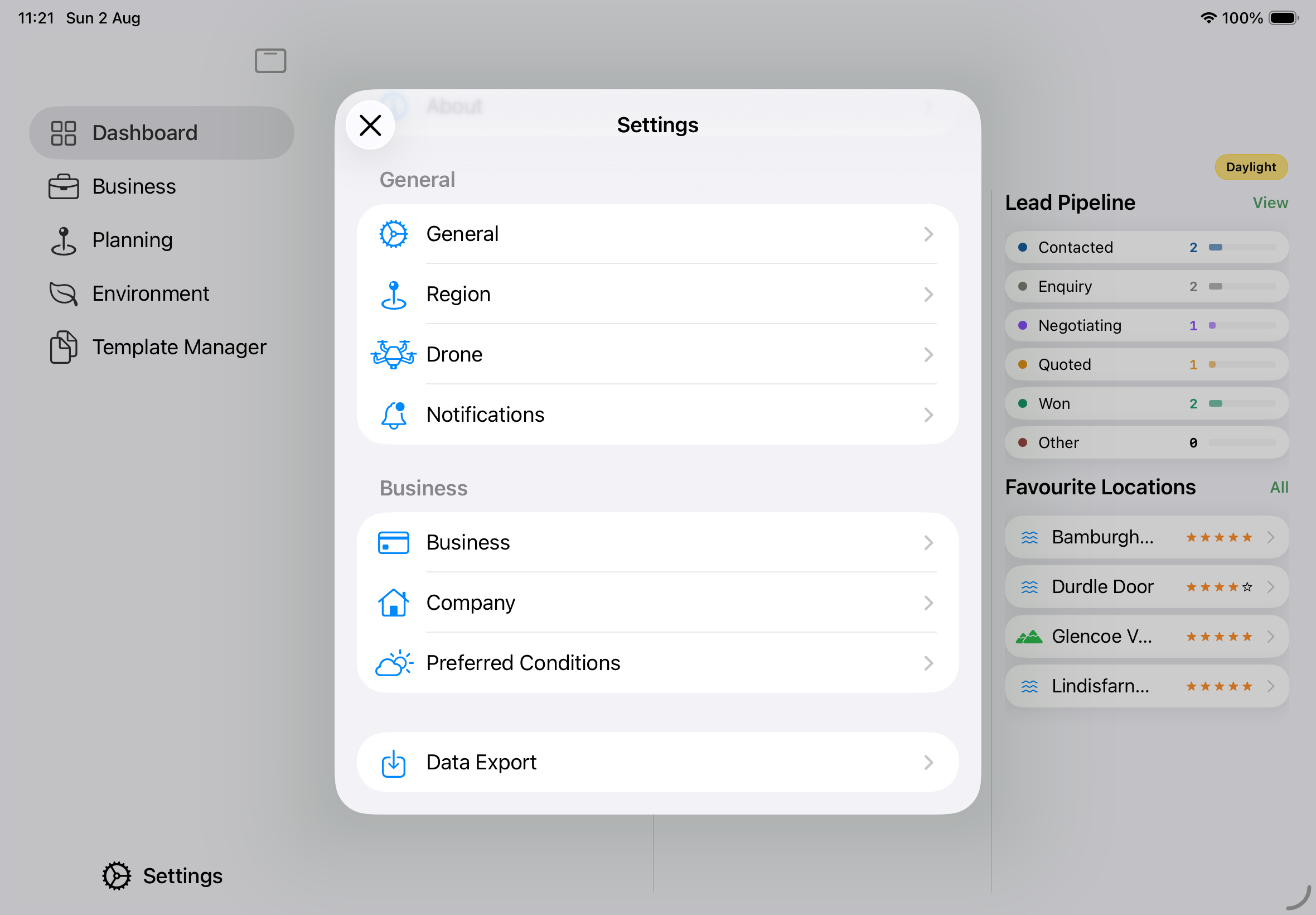
Data Export
Data Export writes everything in your Apex Lucis database to a single Excel spreadsheet (.xlsx), with one worksheet per record type. Use it to hand figures to your accountant, run your own analysis in Excel or Numbers, or keep an off-device backup of your business records.
Included with every copy of Apex Lucis. Data Export is not a Pro feature — no subscription needed.
Where to find it — Settings → Data Export.
What gets exported
Everything you have records for, across both the Business and Planning sides of the app:
Business Bookings · Packages · Clients · Leads · Invoices · Invoice Items · Expenses · Contracts · Contacts
Planning Locations · Shot Lists · Shot Items · Call Sheets · Call Sheet Slots · Trips · Accommodation · Travel Legs · Permits · Crew Rosters · Crew Members · Studios · Studio Bookings · Gear · Gear Service Records
Records that belong to a parent get their own sheet — invoice items are separate from invoices, shot items from shot lists, crew members from crew rosters, accommodation and travel legs from trips. Each carries its parent’s number or title so you can join the two back together. That keeps every sheet a flat table you can sort, filter and pivot without unpicking nested data.
Disclaimer: This export is a record of what you entered, not a set of accounts. Your accountant will need to review it before anything is filed.
What does not get exported
- Binary data — images, PDFs, thumbnails, generated documents. A spreadsheet is the wrong container for these, and including them would produce a file too large to email. Text and numbers only.
- Wildlife and environmental data. Tides, weather and species records are recalculated or re-fetched on demand rather than being your data, so there is nothing to preserve.
- Settings. Your company details, tax rate and preferences stay in the app.
- Empty sheets. A record type with no records is left out of the file entirely, rather than appearing as an empty tab.
Running an export
Open Settings → Data Export. Before you export anything, the screen tells you what you’re about to get: a total record count, and a list of every sheet that will be included with its row count.
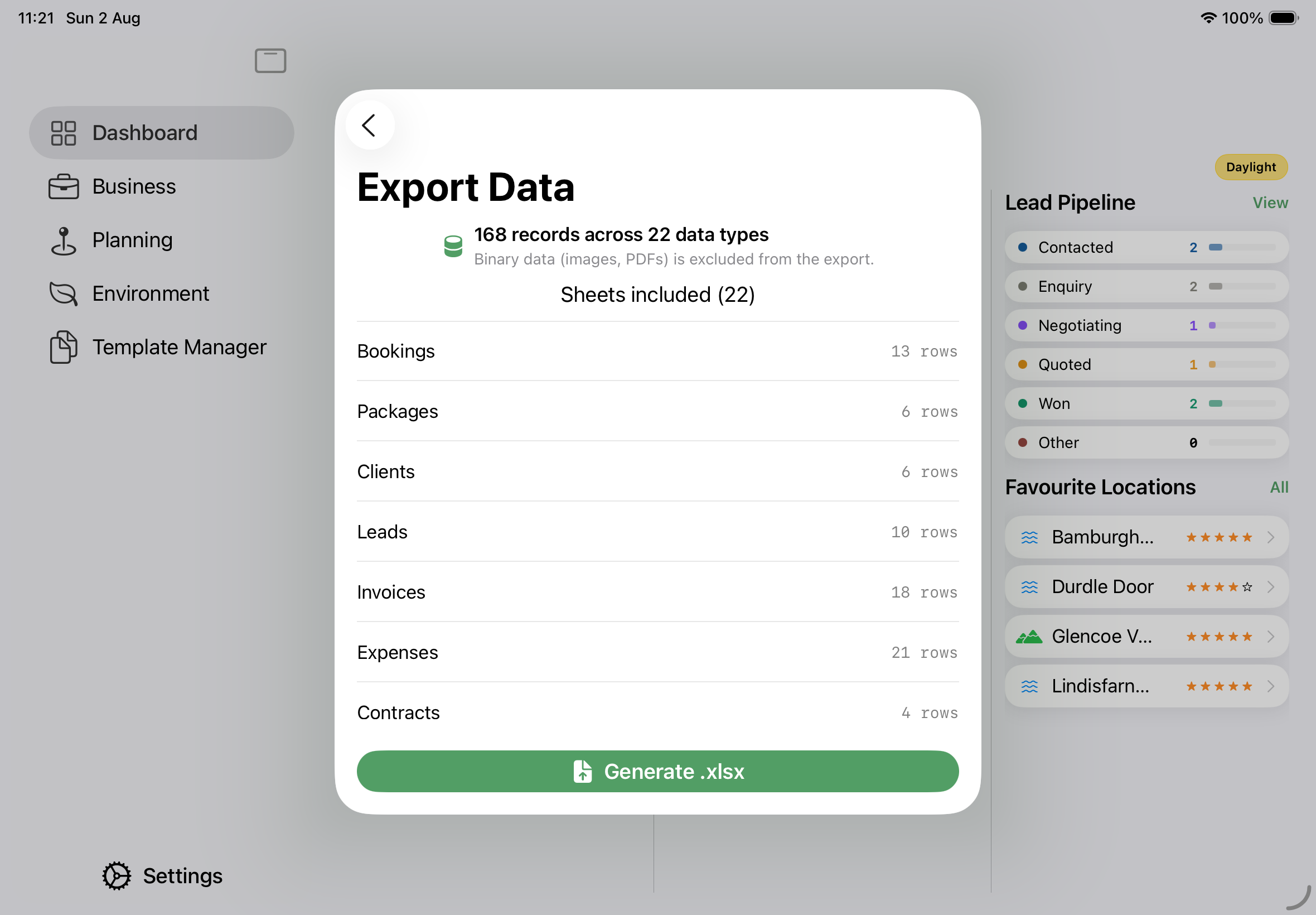
Tap Generate .xlsx to start. A progress bar appears while the app builds the sheets and writes the file — a few seconds for a typical database, longer if you have thousands of records.
The export runs in the background, so the app stays responsive. Leave the screen open until it finishes.
Saving or sharing the file
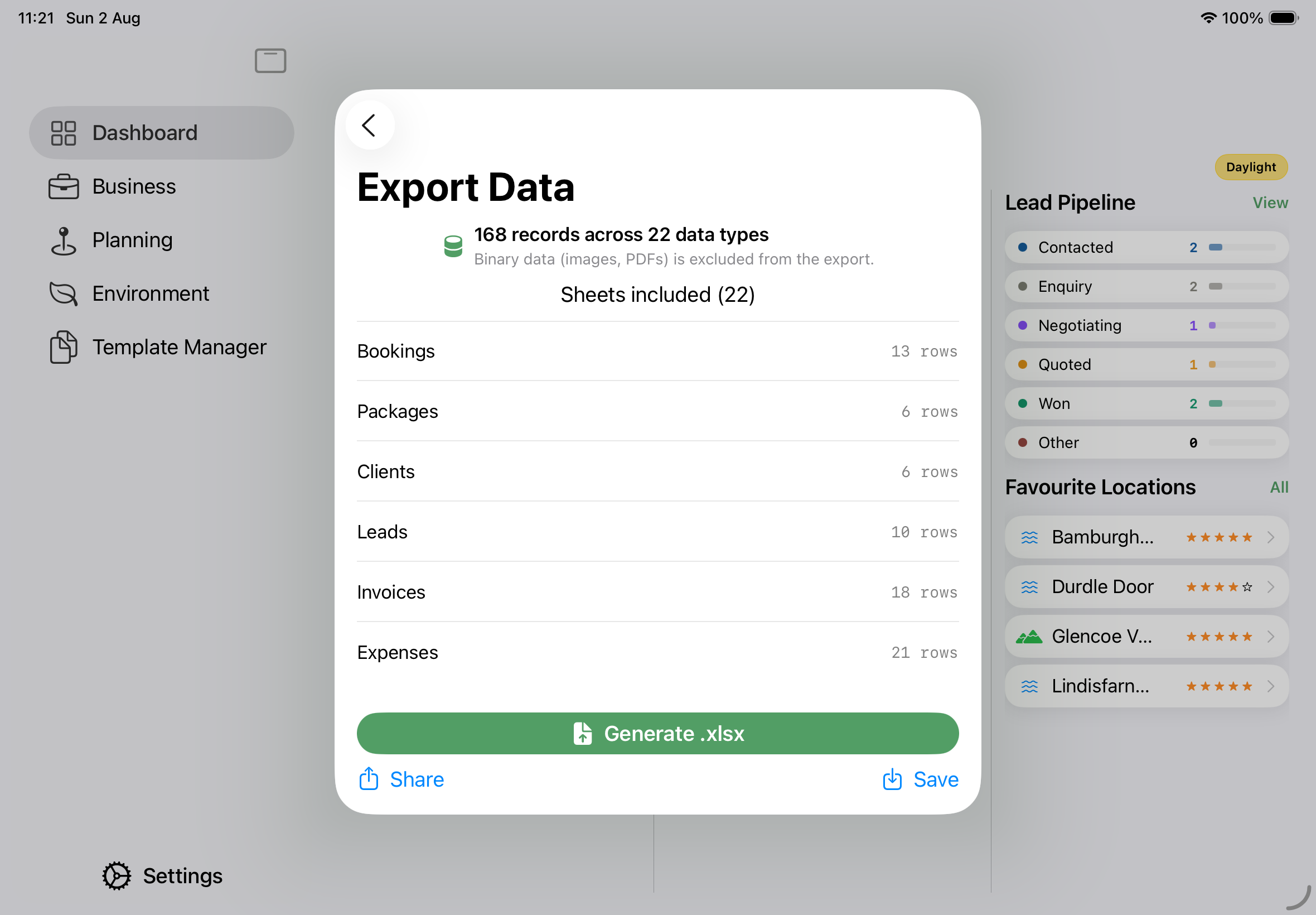
When the export completes, two options appear:
- Share — hands the file to the standard share sheet: Mail, Messages, AirDrop, Slack, or any app that accepts a spreadsheet. This is the quickest route for sending it to your accountant.
- Save — opens the file browser so you can put the file in iCloud Drive, on your Mac, or on an external drive.
The file is named with the date it was created:
ApexLucis-Export-2026-07-28.xlsx
so successive exports don’t overwrite each other in your downloads folder.
Save or share it before you leave the screen. Until you do, the file only exists in temporary storage, and the app deletes it when you navigate away. If you leave without saving, just run the export again — nothing is lost, but nothing is kept either.
Reading the spreadsheet
The file opens in Excel, Numbers, Google Sheets, LibreOffice — anything that reads .xlsx. Each sheet has a header row naming its columns.
Some conventions used throughout:
- Dates are written in ISO 8601 (
2026-07-28T09:30:00Z). This sorts correctly as text, is unambiguous about day-versus-month, and every spreadsheet app can convert it to a real date. In Excel, select the column and use Data → Text to Columns → Date if you want native date formatting. - Money is formatted using your regional currency settings.
- Yes/No is used for true/false values rather than TRUE/FALSE or 1/0.
- Linked records appear by name, not by ID — a booking’s client shows as “Sarah Chen”, the row’s location as “Durdle Door”. Where a link is empty the cell is blank.
- Lists within a single cell are separated by semicolons, so a client’s tags read
wedding; repeat; referral.
Mileage on the Trips sheet
The Total Mileage Claim column is calculated using the distance rate from Settings → Business at the moment you run the export. If you change that rate later, previously exported files keep the old figure — they are a snapshot, not a live link. Check the rate is right for the tax year before exporting for your accountant.
Frequently asked
Can I import the spreadsheet back into Apex Lucis? No. This is a one-way export for analysis, archiving and handing to other people. Your working backup is iCloud, which syncs continuously in the background — Data Export is a supplement to that, not a replacement.
How often should I export? Once per tax year for your accountant, and whenever you want a point-in-time record you control. Because iCloud handles day-to-day sync, there’s no need for a routine weekly export.
The screen says “Nothing to be exported.” You have no records yet. Add a booking, client or invoice and the export screen will populate.
The record count seems low. The summary counts only the record types listed. If you’ve just added something on another device, give iCloud a moment to sync and reopen the screen.
Can I export just one part of my business? Not from within the app — the export is all-or-nothing. Delete the sheets you don’t need once the file is open in your spreadsheet app.
Is the file encrypted? The .xlsx file itself is a plain, unencrypted spreadsheet containing client names, addresses, email addresses and financial records. While it is on your device it is protected by your device passcode and file-level encryption, but once you share it, that protection ends. Treat it as you would any confidential client document: send it over channels you trust, and don’t leave copies in shared folders.