Permits
Overview
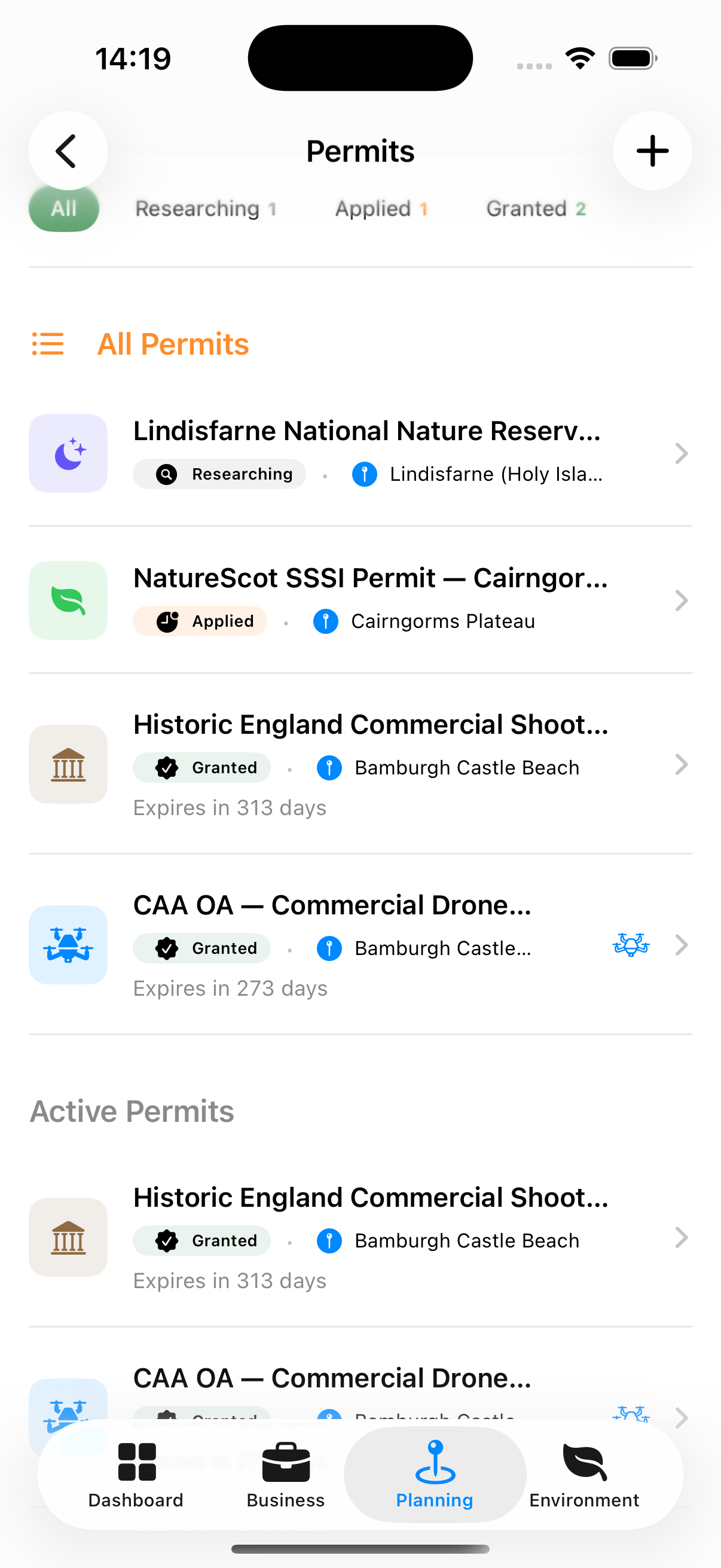
Many photography locations — especially public spaces, parks, beaches, historic buildings, and commercial areas — require permits for professional photography. The Permits manager tracks your applications, their status, conditions, and expiry dates.
Permit Types
| Type | When You Need It |
|---|---|
| General Access | General stills photography in a controlled location |
| Commercial Shoot | Shooting for commercial use (advertising, editorial) |
| Drone Operation | Operating a UAV at the location |
| Night / Out-of-Hours Access | Permission to access a location out of hours |
| Tripod / Equipment License | Permission to use professional photography equipment |
| Location Release | When the building or site will be used commercially |
| SSSI / Protected Area Permit | Shooting in a Protected area |
| Listed Building / Heritage Site | Shooting a listed or heritage building where the conservation body requires prior permission |
Permit Application Statuses
| Status | Meaning |
|---|---|
| Researching | You’re preparing the application |
| Applied | Application sent to authority |
| Granted | Permission granted |
| Active | Permission has been approved |
| Refused | Permission has been refused |
| Expired | Permit past its expiry date |
| Cancelled | Permit has been cancelled |
| Not Required | Permit not required |
Accessing Permits
Planning tab → Permits
Permits can also be accessed from within a booking’s detail screen.
Adding a Permit
- Tap +
- Enter:
- Location — Which location this permit covers
- Permit type — Select from the permit types listed above
- Issuing authority — Name of the council, organisation, or landowner
- Reference number
- Application date
- Approval / expiry date
- Status
- Tap Save
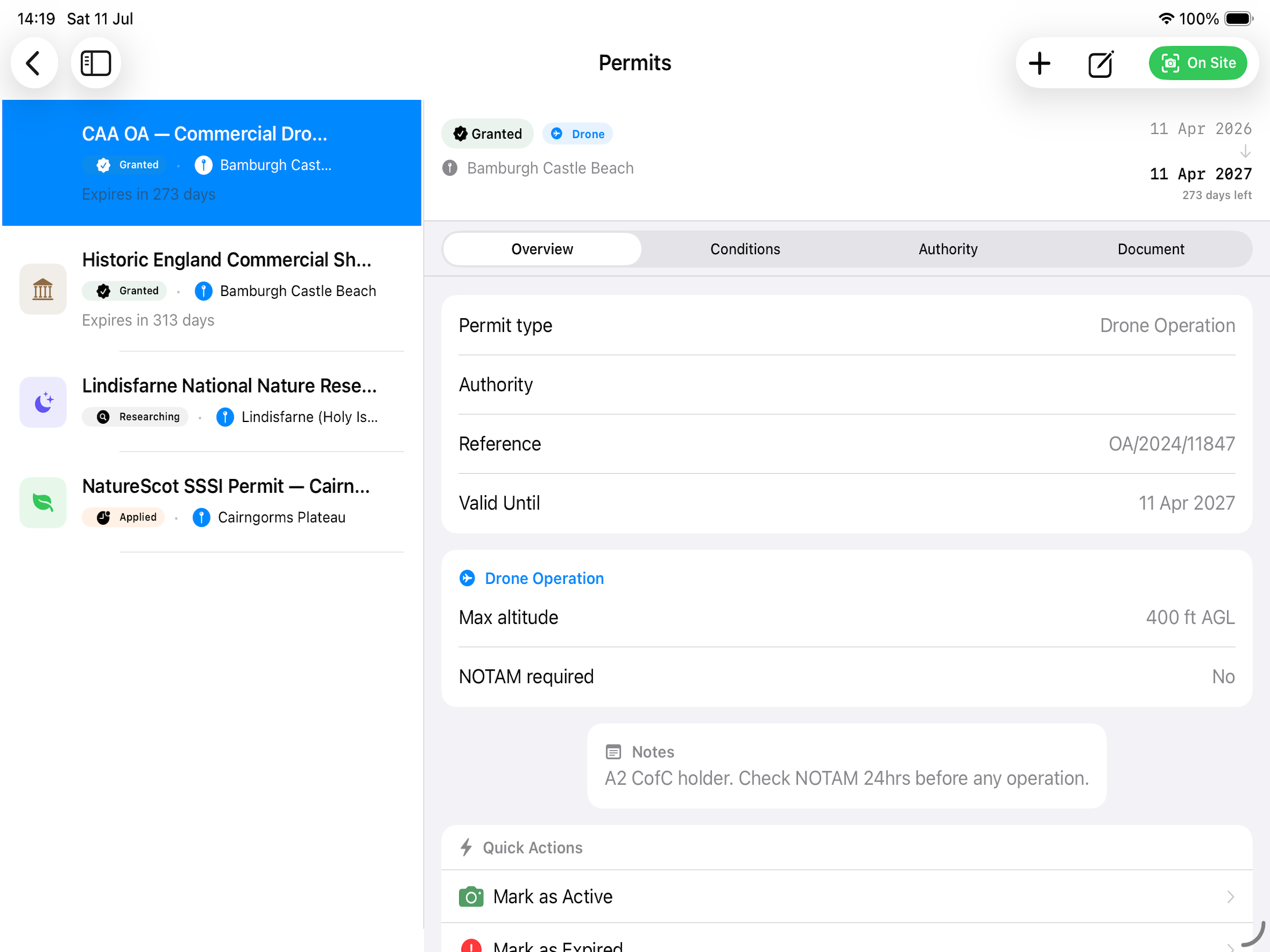
Permit Detail Screen (Four Tabs)
Overview Tab Core permit information: type, dates, reference number, status badge.
Conditions Tab The specific conditions attached to the permit (e.g., “No tripods on the main steps”, “Photography permitted from 7am–8pm only”, “Crew maximum 4 people”).
To add a condition:
- Tap + Add Condition
- Type the condition text
- Tap Save
Authority Tab Contact details for the issuing authority — name, address, email, phone. Tap to call or email directly.
Document Tab Attach the permit document:
- Scan or photograph the physical permit
- Attach a PDF from Files
- Tap to view the full document
Tip: Always upload the permit document once approved. If challenged on location, you can show the authority your digital permit from Apex Lucis.