Widgets
Apex Lucis puts your next shoot, tonight’s light and the state of the tide on the Home Screen, the Lock Screen and the Mac’s Notification Centre — and, on a shoot day, on the Lock Screen as a live countdown.
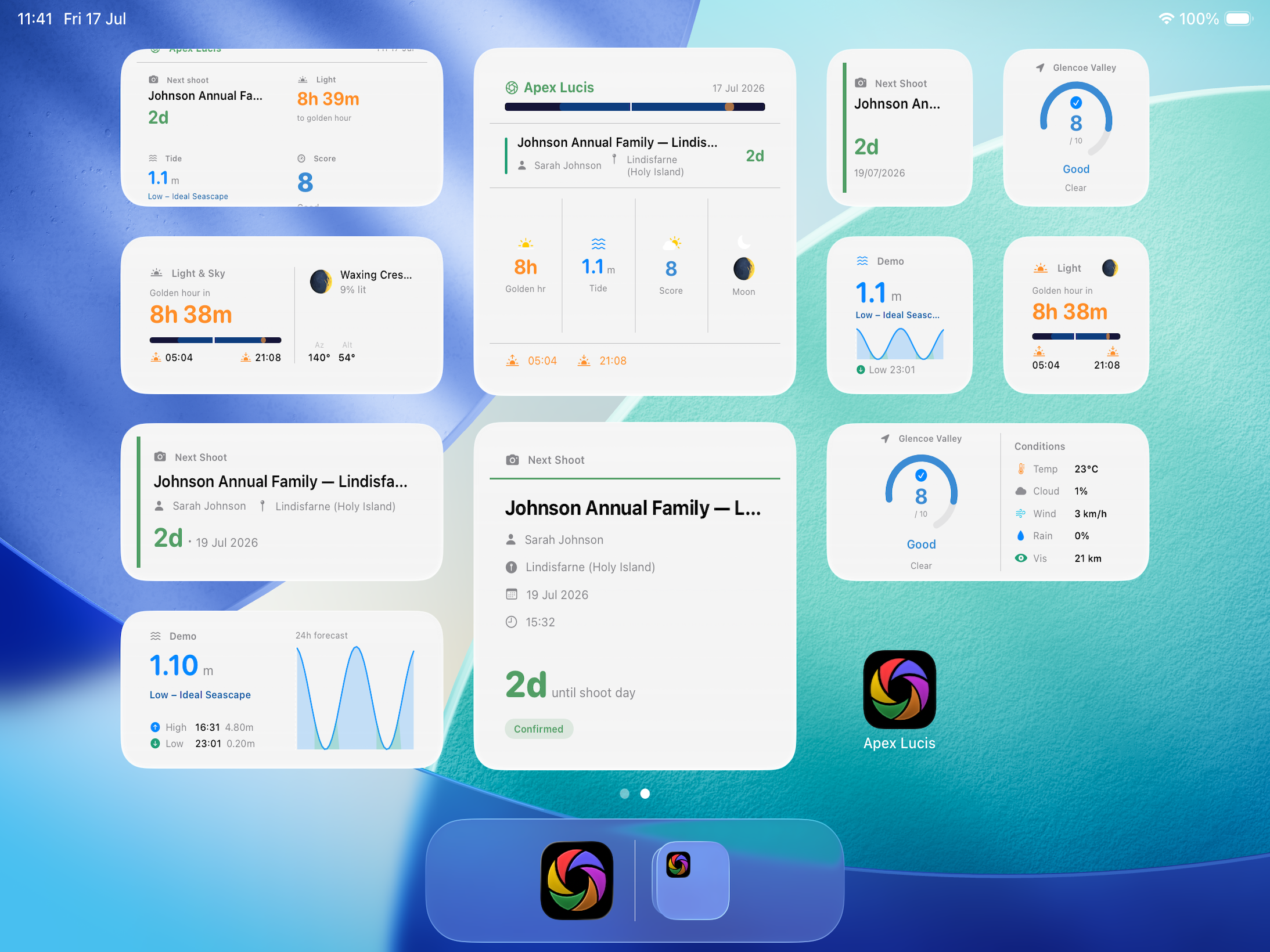
Home Screen Widgets
| Widget | What It Shows | Sizes |
|---|---|---|
| Apex Lucis Glance | Next booking, golden hour, tides, condition score and moon in one view | Medium, Large |
| Next Booking | Title, client, date and condition score of your next shoot | Small, Medium, Large |
| Light & Sky | Golden hour countdown, sunrise and sunset, moon phase | Small, Medium |
| Shoot Conditions | The condition score with its weather breakdown | Small, Medium |
| Tides | Current height, the photography window, and a 24-hour chart | Small, Medium |
| Overdue Invoices | What is unpaid, what it comes to, and how late the oldest one is | Small, Medium |
All of them are available on iPhone, iPad and Mac.
Adding Widgets
- Long-press the Home Screen
- Tap + (top left)
- Search for “Apex Lucis”
- Choose a widget and size
- Tap Add Widget
- Tap Done
On a Mac, right-click the desktop or open Notification Centre and choose Edit Widgets.
Lock Screen Widgets
Most of the widgets also come in the small shapes that sit above and below the Lock Screen clock. iPhone and iPad only.
| Widget | Shapes |
|---|---|
| Apex Lucis Glance | Rectangular |
| Next Booking | Rectangular, inline |
| Light & Sky | Rectangular, inline |
| Shoot Conditions | Circular, rectangular |
| Tides | Rectangular, inline |
Shoot Conditions in the circular shape is a gauge, so the score reads from how full the ring is. The Lock Screen draws in a single colour, so the fill has to carry it rather than a red-to-green scale.
To add one: press and hold the Lock Screen, tap Customise, choose Lock Screen, then tap a widget slot.
Control Centre
Next Golden Hour is a control rather than a widget: it shows the next golden hour at your pinned location and opens Light & Sky when you tap it. iPhone and iPad.
Add it to Control Centre, to a Lock Screen control slot, or to the Action Button:
- Control Centre — swipe down from the top right, tap +, then Add a Control and find Apex Lucis
- Action Button — Settings → Action Button → Controls, then choose it
- Lock Screen — press and hold, Customise, then tap one of the two control slots at the bottom
Where there is no golden hour to show it falls back to the next sunset, then to sunrise. A control still showing this morning’s golden hour at nine at night would be worse than one admitting it has nothing.
Live Activities
A Live Activity is a countdown that lives on the Lock Screen while something is happening, and clears itself when it is over. On iPhone it also appears in the Dynamic Island. iPhone and iPad.
Apex Lucis has three, and none of them start on their own — you start each from the screen whose data it carries.
| Activity | Started from | Shows |
|---|---|---|
| Light | Light & Sky | A countdown to whichever of golden hour, blue hour, sunrise or sunset is next |
| Tide | Tides | A countdown to the next high or low water, with its height and the photography window |
| Call Sheet | Putting a call sheet into Field Mode | The slot running now and the one after it |
The light and tide activities are started from the button in the toolbar of that screen. The call sheet one has no button of its own — switching the call sheet to Field Mode raises it, and switching back to Plan ends it.
Tip: Start the light activity as you set up. Golden hour arrives quietly, and a glance at a locked phone is quicker than opening the app with cold hands.