Notifications
Overview
Apex Lucis can tell you a shoot is coming up, warn you when the forecast turns against it, catch you before golden hour or a low tide opens at your location, tell you when the aurora is forecast, nudge you before a promised delivery date slips, and chase invoices and contracts that have gone quiet.
Nothing arrives unless you ask for it. You choose which alerts each booking raises, and how much warning each one gives.
Accessing Notifications
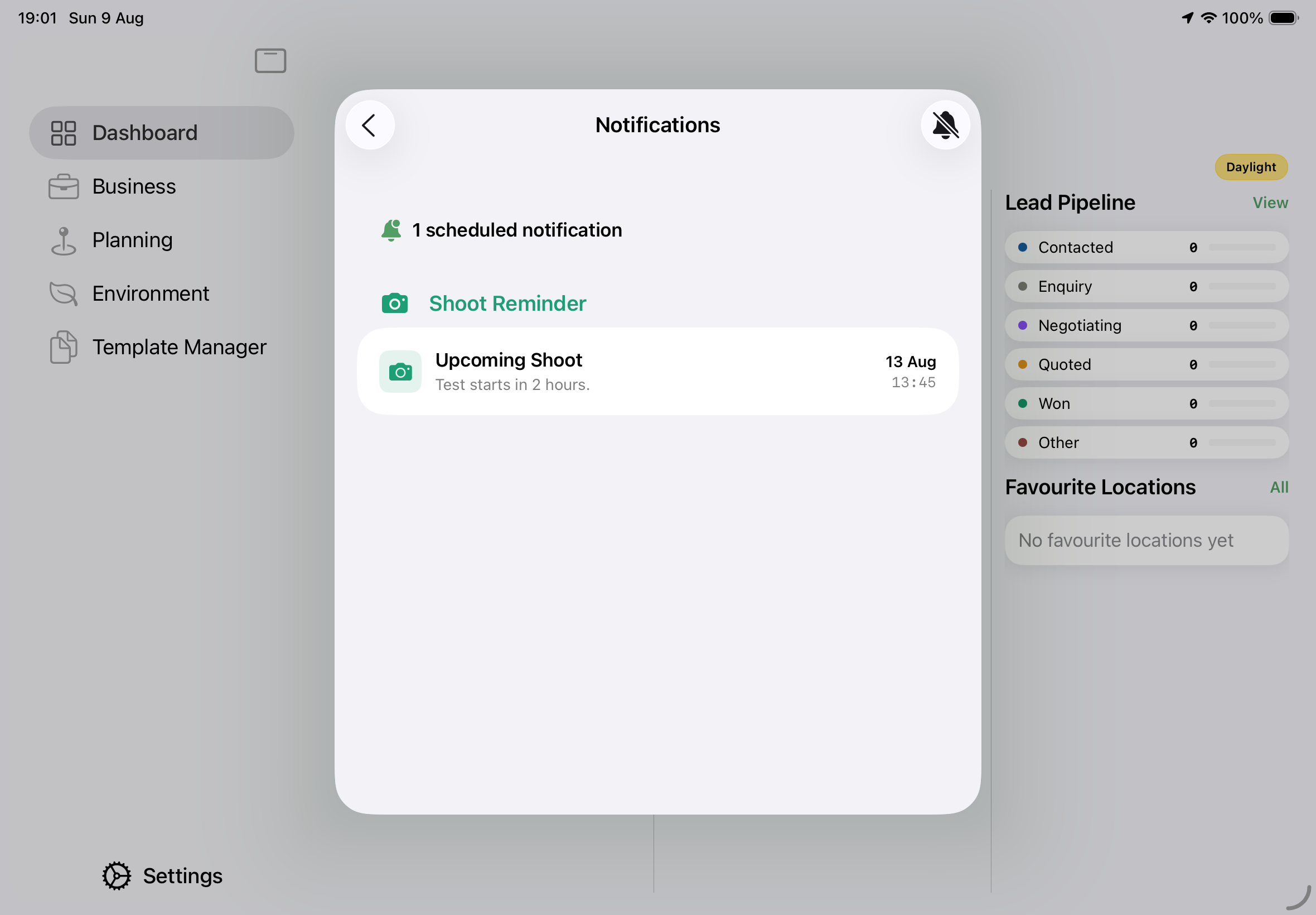
Settings → Notifications — everything waiting to arrive on this device
Settings → Alert Timing — how much warning each alert gives
Turning on notifications
The first time Apex Lucis needs to send you something it asks permission. If you declined, turn it back on in Settings → Privacy → Notifications.
Without permission nothing arrives. Alerts still appear under Settings → Notifications, they simply never reach you.
Choosing alerts for a booking
Every booking has a Notifications section in its new-booking and edit sheets, with five switches.
| Alert | Tells you | On by default |
|---|---|---|
| Shoot Reminder | The shoot is coming up | Yes |
| Poor Conditions | The forecast for it is poor | No |
| Golden Hour | Golden hour is about to start at the location | No |
| Low Tide | A low-tide window of an hour or more is about to open | No |
| Tide Cut-Off | The water is about to reach the location’s safe height | No |
The four environmental alerts start switched off. Whether a shoot wants a tide alert is your call, not something the app can work out — you might book a midday headshot and fully intend to stay out for the evening light afterwards.
The caption under each switch tells you when that alert will arrive, using your own timings.
The booking’s Details tab lists what is switched on. If nothing is, it says so.
Some alerts need the right location
- Golden Hour needs an outdoor location. A Studio or Indoor location has no golden hour, so the switch is greyed out.
- Low Tide needs a Coastal location close enough to a tide station. Check the Tides screen shows a curve for that location first.
- Tide Cut-Off needs a Coastal location with a Safe Height set on it. The switch says which of the two is missing.
- Shoot Reminder needs no location at all.
Where an alert cannot arrive, the switch says why rather than disappearing.
Low tide alerts
You get one low-tide alert per shoot: the tide closest to it.
If a low tide falls during the booking, that is the one you are told about. Otherwise it is the nearest one either side — so a tide an hour after an evening shoot finishes is chosen over one six hours before it began.
Two bookings at the same beach each get their own alert, for their own tide.
Tide cut-off alerts
The one alert Apex Lucis sends about getting off a beach rather than onto one. It arrives an hour before the water reaches the location’s safe height, names the time it gets there, and is louder than the others.
It only exists where a location has a Safe Height. If the tide is not forecast to reach your height around that shoot, no alert is raised — the booking’s Tide Cut-Off card says as much.
Disclaimer: A tide prediction does not account for weather, surge or the shape of the ground, and the water can arrive sooner. Official local tide tables and coastguard advice come first.
Alert Timing
Settings → Alert Timing sets how much warning each alert gives. Two hours is plenty for a studio down the road and nowhere near enough for a clifftop an hour’s drive away.
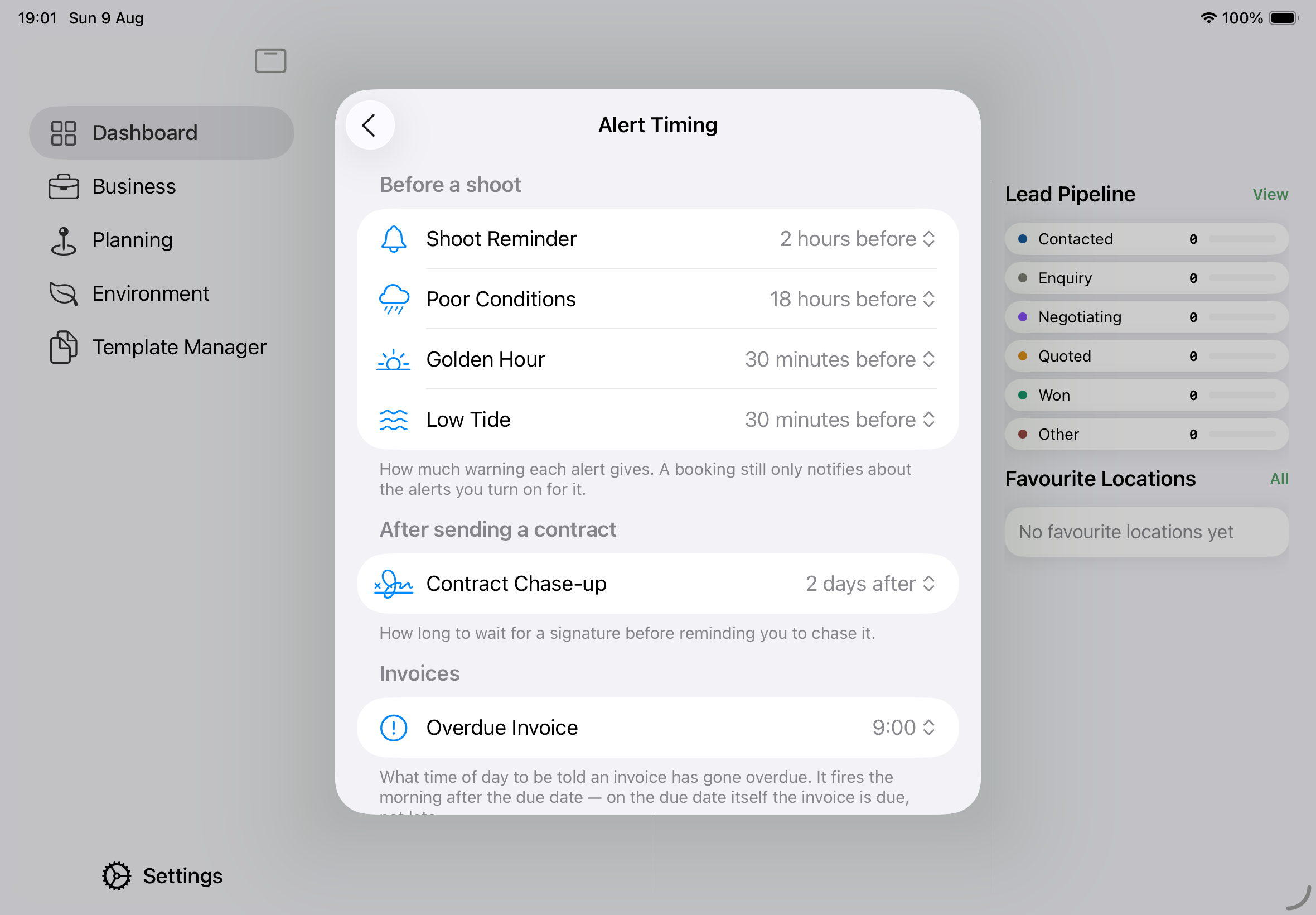
| Setting | Default |
|---|---|
| Shoot Reminder | 2 hours before |
| Poor Conditions | 18 hours before |
| Golden Hour | 30 minutes before |
| Low Tide | 30 minutes before |
| Tide Cut-Off | 1 hour before |
| Contract Chase-up | 2 days after sending |
| Overdue Invoice | 9:00 am |
| Warn When Rated | Below 6 |
Pick from a list running from At the start through minutes and hours to a week, the same way Calendar does it. Golden Hour and Low Tide are set separately.
Tide Cut-Off is set longer than the rest for a reason: an hour is enough to walk off a flat, and half an hour may not be.
Warn When Rated is the odd one out. The Poor Conditions alert only arrives when a shoot scores below it, so raising it means hearing about more shoots. Set it to Below 9 and only a near-perfect forecast stays quiet.
Reset to Defaults appears once you have changed something.
Tip: Set your timings, then tap back. Alerts you already have move to the new times as you leave the screen — check Settings → Notifications to see them.
Calendar alerts
If you sync bookings to your calendar, the calendar entry carries an alert of its own, using your Shoot Reminder timing. Switch the shoot reminder off for a booking and its calendar entry has no alert either.
Note: That is a second reminder, from Calendar rather than from Apex Lucis, and both arrive at the same moment. The calendar one takes up a new timing the next time you save the booking.
Delivery
These are not chosen per booking either. Promise a date on an item in a booking’s Delivery tab and it raises two alerts of its own.
| Alert | Arrives |
|---|---|
| Delivery Due Soon | Three quarters of the way from the shoot to the promised date, while there is still time to do something about it |
| Deliverable Overdue | The morning after the promised date, and each morning after that, while it is still undelivered |
Each item on a job has its own pair, because one job can owe a gallery and an album on different dates and both have to be able to run late at once.
Both stop the moment the item is marked Delivered or Archived, and there is no due-soon alert where the promise falls on or before the day of the shoot — there is no window to be three quarters of the way through.
Turning delivery alerts off
Swipe a delivery row and tap Turn Off. Items you have silenced appear under Delivery Alerts Turned Off at the bottom of the Notifications screen, and Turn On brings one back.
Aurora
For your favourite locations far enough from the equator, an alert on the nights the forecast is strong enough to see one. Off until you ask for it.
Settings → Alert Timing → Aurora
| Setting | What it does |
|---|---|
| Aurora Alerts | Turns them on |
| Tell Me When It Is | How good it has to be — On the horizon or Overhead |
You pick how good it has to be, not a number. On the horizon is a pale glow low in the sky that a camera picks up long before your eyes do. Overhead is far rarer and far better, with structure and movement in it — and needs a much stronger storm.
Apex Lucis works out what that means for each of your locations. The same display that fills the sky in Orkney is a faint glow in Yorkshire and nothing at all in Cornwall, so the bar is different at every place you have saved and you only choose it once.
The alert arrives as it gets properly dark, names the strength forecast, and says whether to expect a glow or an overhead display.
Where you get no alert
- The location is not a favourite. Star a location to include it.
- It is a Studio or Indoor location. There is no sky.
- It is too far from the pole for any storm to reach.
- There is no real night. In midsummer at high latitude the sky never gets dark enough — which is exactly where the aurora is otherwise easiest.
Turning one off
Swipe it and tap Turn Off. That clears tonight’s only — you will be told again the next time the forecast is strong enough. To stop them altogether, turn Aurora Alerts off in Alert Timing.
Note: Space weather is only forecast a few days ahead, so an alert can only ever be a night or two of warning. See Light & Sky.
Invoices and contracts
These are not chosen per booking — they follow the invoice or contract itself.
| Alert | Arrives |
|---|---|
| Invoice Overdue | The morning after the due date, at the hour you set, while it is still unpaid |
| Contract Reminder | After you mark a contract Sent, if it has not come back signed |
An overdue invoice alert changes what it says as time passes: plain at first, Chase This Invoice from three days, Invoice Still Unpaid from a fortnight. Tapping it opens that invoice, where the chase message is waiting.
A contract chase-up stops as soon as the contract is signed or cancelled. An invoice alert stops when the invoice is paid, voided or deleted.
The chase-up counts from the day you marked the contract Sent, so sending it again does not restart the wait.
Delete a booking and its contract stops being chased — there is no shoot left to sign for.
Seeing what is waiting
Settings → Notifications lists everything waiting to arrive on this device, grouped by type, with the date and time each is due.
It is the quickest way to check an alert exists without waiting to find out.
Turning one off
Swipe a row and tap Turn Off. Where that changes the booking behind the alert, and so reaches all your devices, Apex Lucis tells you what it will do before it does it. A single invoice alert goes straight through — it can be turned back on from this screen.
| Alert | Turn Off |
|---|---|
| Shoot Reminder, Poor Conditions, Low Tide | Switches the alert off on the booking, on all your devices. Switch it back on from the booking. |
| Golden Hour | Switches it off for every booking at that location — the alert belongs to the place rather than to one shoot. |
| Contract Reminder | Clears it for now. It comes back until the contract is signed or cancelled. |
| Invoice Overdue | Stops that invoice chasing you. It stays off until you turn it back on. |
A section header offers Turn Off All for that type.
Note: Clear All empties the list but turns nothing off. Anything your bookings still ask for comes back when you next open the app. To stop one for good, turn it off from its own row.
Turning an invoice alert back on
An invoice whose overdue alert you turned off appears under Turned Off at the bottom of the Notifications screen — “3 invoices’ overdue alerts are turned off”. The first few are listed there; Show All opens the full list, which you can search. Each row names the invoice, who it is for, and how late it is.
Turn On brings one back. Its next reminder lands the morning after it fell due, or tomorrow morning if that has already passed, and repeats daily until the invoice is paid, voided, or turned off again. Turn All On does the lot.
This is the only place a turned-off invoice alert can be found, because the list above it shows only alerts that are still coming.
Changing when one arrives
An Invoice Overdue alert can be moved on its own: swipe it from the left and tap Edit.
The rest cannot be moved individually. To change when they arrive, adjust the timing in Alert Timing or move the booking.
Alerts on your other devices
Each device holds its own alerts — Apple gives apps no way to share them between devices. What travels is your data: the booking, the switches you chose, your timings, the contract’s status. Each device then works out for itself what it should be telling you.
It does that when you open the app, when you come back to it, and when iCloud lets it know something has changed — usually within a minute or two.
In practice, a booking made on your Mac will have its alerts on your iPhone shortly afterwards, without you touching the phone.
Note: A device that is never opened and never woken cannot work anything out. If a reminder has to be on your phone, open Apex Lucis on it once after making the booking. Low Power Mode stops the background wake-ups entirely.
Cancel a booking on the Mac and its reminder disappears from your phone. Turn an alert off on your phone and the Mac drops it too.
Why an alert did not arrive
It was already too late. Every alert has a lead time, and one whose moment has passed is not raised at all. With an 18-hour conditions warning, a shoot starting in three hours gets none.
Conditions were fine. The Poor Conditions alert only arrives below your Warn When Rated setting. Check the Shoot Score for the booking.
There was no low tide worth reporting. A window has to last at least an hour to be worth driving for, and a neap week may hold none near your shoot.
The location cannot support it. Golden Hour needs an outdoor location; Low Tide needs a coastal one near a tide station.
The switch is off. The four environmental alerts start off. Check the booking’s Details tab.
You turned it off from the list. Swiping a shoot reminder, conditions or low-tide alert away also switches it off on the booking.
Permission was declined. Check Settings → Privacy → Notifications.